Chrome hides one setting on purpose. You can change your homepage, you can pick which pages open on startup, but there's no field anywhere in Settings for the page you actually see most: the one that loads every time you press Ctrl+T. Chrome reserves that slot, and the only way to claim it is an extension.
It helps to separate three pages people mix up. The homepage is what the little house button opens. The startup pages are what Chrome shows when you launch it. The new tab page is what appears on every Ctrl+T. Chrome's Settings cover the first two and deliberately leave out the third. Google's own help pages confirm it: you can theme the new tab with a background and shortcuts, but there's no box for a custom address.
Why Chrome makes you install something
The new tab page is a protected surface. An extension takes it over through a manifest setting called chrome_url_overrides, which hands the new-tab slot to a page the extension supplies. That's the sanctioned route, not a workaround Chrome tolerates by accident. It's also why every speed-dial and dashboard extension exists, and why you should be picky about which one you install. A lot of them ask for permission to read and change your data on every site you visit, then pack your new tab with sponsored tiles and log where you go next. You'd be swapping a blank page for a billboard that watches you.
You'd be swapping a blank page for a billboard that watches you.
What New Tab Redirect does
New Tab Redirect does one thing. It catches the new tab and sends it to a URL you choose. James Schubert has kept it running for well over a decade (the options page still carries a 2009 copyright), and it's still on the Chrome Web Store, currently version 3.1.6 (updated October 2023), with roughly 700,000 users and a 4.1-star rating across about 3,200 reviews. It's open source under an MIT license, and the developer states plainly that it collects no data and sells nothing to third parties.
That last part is the reason to prefer it over the flashier options. It doesn't render its own dashboard, so it never needs to read your browsing. It redirects and gets out of the way. It also came through Chrome's Manifest V3 migration intact (the shipping build is MV3), so it still works in current Chrome. You can point it at any full URL, a local file, or a blank page.
Install it
- Open New Tab Redirect by James Schubert on the Chrome Web Store, then click Add to Chrome and Add extension in the dialog.
- Chrome installs it and takes over the new tab right away. Press Ctrl+T and you'll land on the extension's default page instead of Chrome's thumbnail grid.
Point it at your page
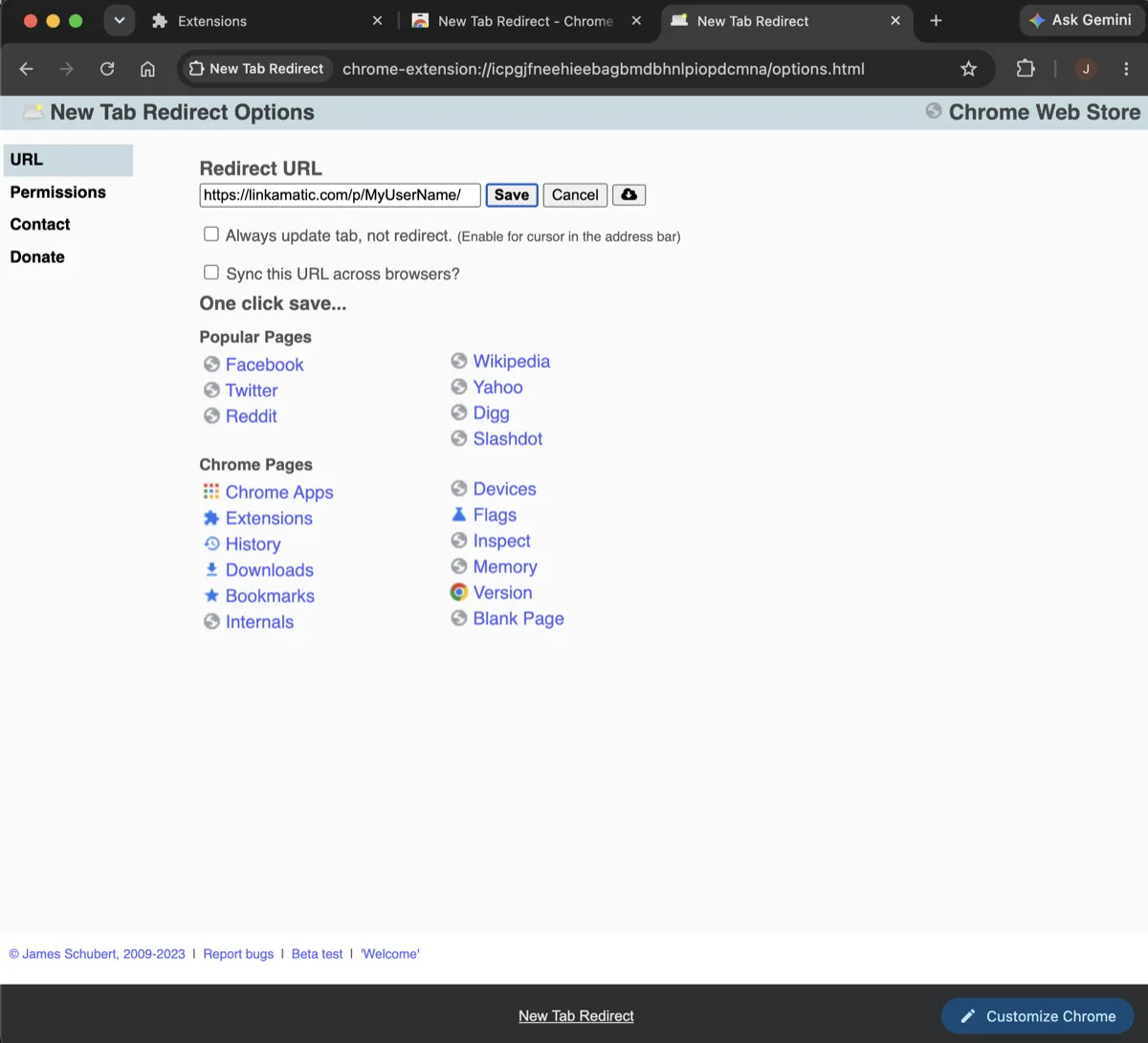
- Open the options: right-click the extension's icon and choose Options, or go to chrome://extensions, find New Tab Redirect, click Details, then Extension options.
- On the URL tab, put your full page address in the Redirect URL box, including https://. The scheme is required: www.example.com alone won't take, https://www.example.com will. For a Linkamatic page it looks like https://linkamatic.com/p/your-username/your-page.
- Click Save, then open a new tab to check it lands where you meant.
Two checkboxes on that page are worth knowing. "Always update tab, not redirect" keeps the text cursor in the address bar and skips the brief flash you'd otherwise see as the extension hands off to your URL. "Sync this URL across browsers" carries the setting to your other desktop Chrome installs, so the same new tab follows you between machines.
The part every other guide skips: what URL?
Search results for this are full of "enter your URL and hit save," and then they stop, right at the only interesting question. Point the new tab at Google and you've done an install to reach a search box the address bar already gave you. Point it at a news site and every new tab is someone else's front page, refreshed to whatever they want you clicking today.
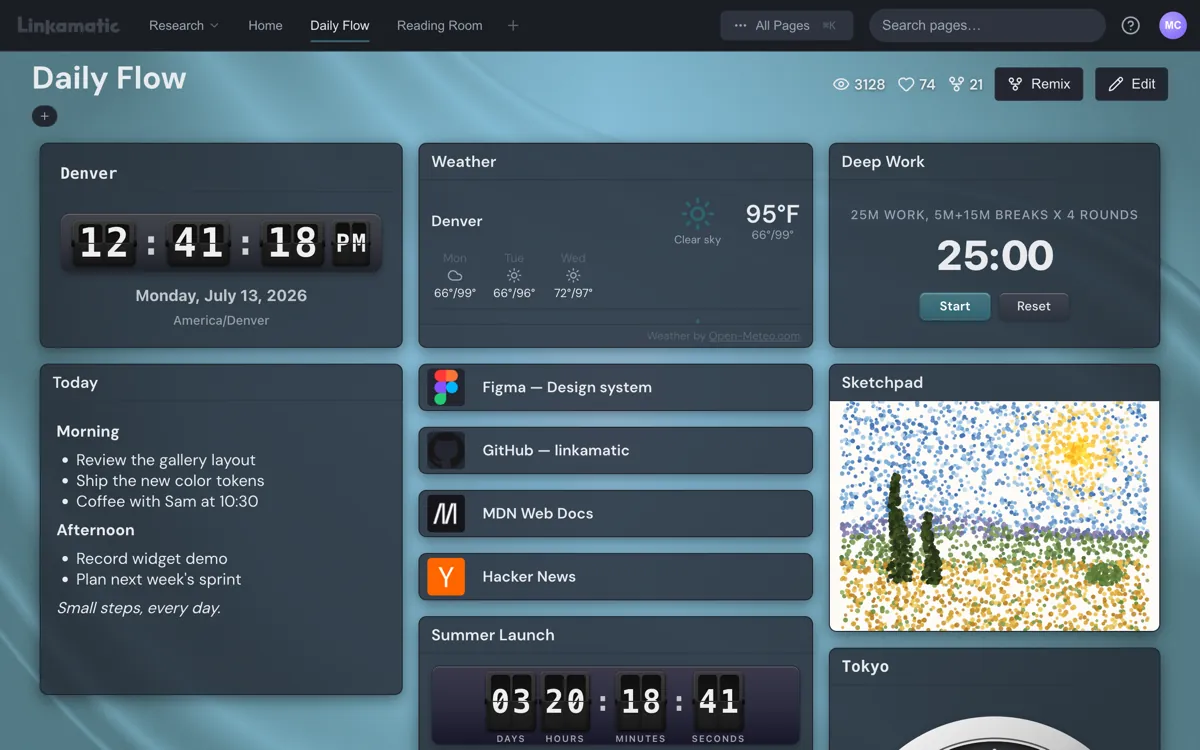
The version worth the trouble is a page you built yourself. That's what I use Linkamatic for. You lay out the links you open every day and drop in widgets for the things you'd otherwise open a tab to check: weather, a clock set to your team's time zones, an RSS feed, a notepad, a countdown to the next deadline. The whole thing lives at one hosted URL. Paste that URL into New Tab Redirect and every new tab opens the page you designed, not a grid of sites Chrome guessed you'd want.
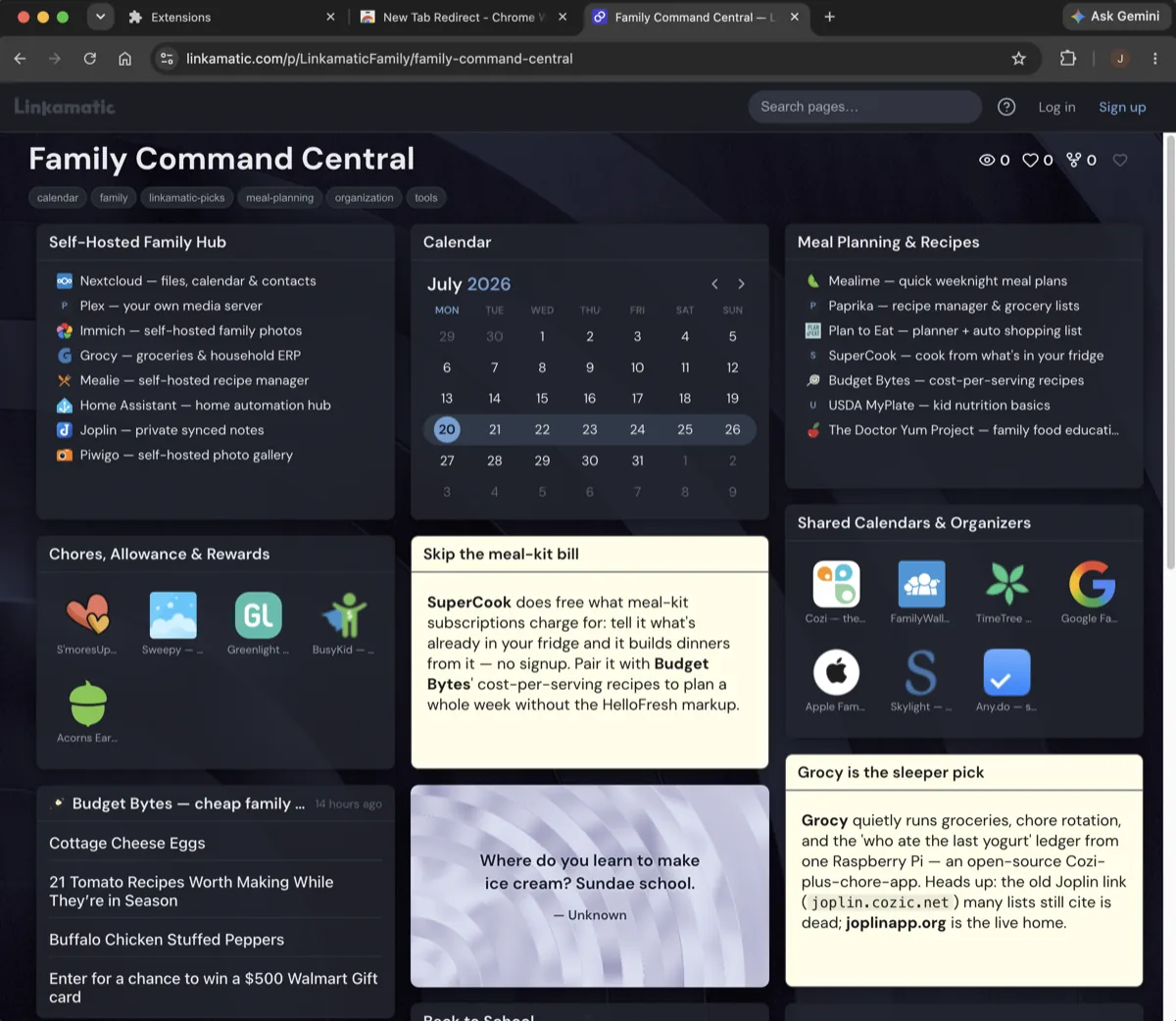
Because it's an ordinary URL, the redirect is dependable. No local-file permissions to grant, no file:// toggles, no bundled page that breaks the next time the extension updates. And you can reuse the same address as your homepage and your startup pages, so the home button, the Chrome launch, and every new tab all land in the same place you built.
Mobile, work laptops, and backing out
Two things the extension can't help with. Chrome on Android and iOS doesn't support new-tab extensions at all, so on your phone you set the same Linkamatic URL as your homepage or save it to your home screen instead. And if your work laptop runs managed Chrome, an admin policy can lock the new tab page or block extensions outright. Check chrome://policy to see what's set; when a policy owns the new tab, the extension quietly won't stick, and your fallback is the homepage or startup route.
Undoing all of this is easy. Uninstall the extension and the default new tab comes back. Chrome shows you which extension controls the new tab right in that page's footer, so you're never guessing what's in charge.