Most people who want to change their home page are actually after one of three different things, and they pick the wrong setting first. That's why their page shows up sometimes but not others, or why clicking around in Settings seems to do nothing. Figure out which surface you mean and the rest takes about two minutes.
Three pages, three settings
Your browser has three separate things it can load, each configured on its own. One is the startup page, which opens when you launch the browser cold. Another is the home-button page, which loads when you click the little house icon in the toolbar (usually hidden by default). The third is the New Tab page, which you see every time you press Ctrl+T or open a new window. Changing one doesn't touch the other two.
So decide which one you actually care about before you open Settings:
- Want your page every time you start the browser? Change the "On startup" setting.
- Want it when you click the Home button? Enable the Home button, then set its URL.
- Want it on every new tab? This is the tricky one. Chrome and Safari won't let you point a new tab at an arbitrary URL without an extension. Edge and Firefox give you more room.
That last point trips up most guides. The surface you stare at most, the New Tab page, is the one browsers lock down hardest. So if your real goal is a page that greets you constantly, the startup setting is usually a better target than fighting the new-tab restriction.
Google Chrome (desktop)
Open the three-dot menu, go to Settings, then On startup. You get three choices: open the New Tab page, continue where you left off, or "Open a specific page or set of pages." Pick the last one, click Add a new page, and paste your URL. If you already have the tabs you want open, the "Use current pages" button snapshots every open tab as your startup set at once, which beats typing several URLs by hand.
For the Home button, go to Settings, Appearance, and turn on "Show Home button." Then choose the New Tab page or enter a custom web address. Chrome won't let you set a custom URL as the New Tab page itself without an extension, so don't waste time hunting for that option. It isn't there.
Microsoft Edge (desktop)
Edge has the cleanest layout of the four. Everything lives under Settings, then "Start, home, and new tab page." One panel, all three surfaces. Under Start, choose "Open these pages" and add your URL. Turn on "Show home button on the toolbar" and either point it at the new tab page or choose "Enter URL." Edge is also the one mainstream browser that lets you set the New Tab content with real options instead of forcing an extension, so if the new-tab surface is what you care about, Edge is the easiest path.
Mozilla Firefox (desktop)
Open the menu, go to Settings, then Home. Next to "Homepage and new windows," change the dropdown from Firefox Home to "Custom URLs," and a field appears. Paste your page in. Firefox has a trick the others lack: separate several URLs with a vertical bar (the pipe, |) and it opens all of them at launch, each in its own tab. You could load your dashboard, your email, and your calendar in one go by writing them as one|two|three.
Safari (Mac)
Safari quietly ignores you if you do half the job. Open Safari, then Settings (older versions call it Preferences), then General. Type your address into the Homepage field, or click "Set to Current Page" if you're already on it. Here's the part the field alone won't fix: right above it, set "New windows open with" and "New tabs open with" to Homepage. Skip that and your custom page never shows up, because Safari defaults both of those to the Start Page or Favorites instead.
On a phone
Mobile is where this gets honest. Chrome only has a homepage setting on Android: Settings, Homepage, toggle it on, enter the URL. Firefox on Android has no homepage at all (your nearest option is adding the site to your Top Sites), but Firefox on iOS does, under Settings, Home, Custom URL. Edge supports "A specific page" under Settings on both iOS and Android.
Safari on iPhone and iPad has no real homepage feature, full stop. There's no field to set one. Your two workarounds are customizing the Start Page (the panel you see on a new tab) or using Share, then "Add to Home Screen," which drops an icon on your home screen that opens straight to the page. The second one behaves more like a homepage than anything inside Safari's settings.
What's worth opening to
Every guide ends by telling you to type google.com and walk away. That's a waste. You'll look at this page thousands of times a year, and a single search box uses maybe two percent of the screen for it.
A blank search field isn't a start page. It's a detour to wherever you were already going.
A start page worth having holds the eight or ten links you open every day plus a few things you'd otherwise check on separate sites: the time across a couple of zones, today's weather, your to-do list, a calendar, maybe an RSS feed of headlines or a countdown to something you care about. Land somewhere that answers a question instead of asking you for one.
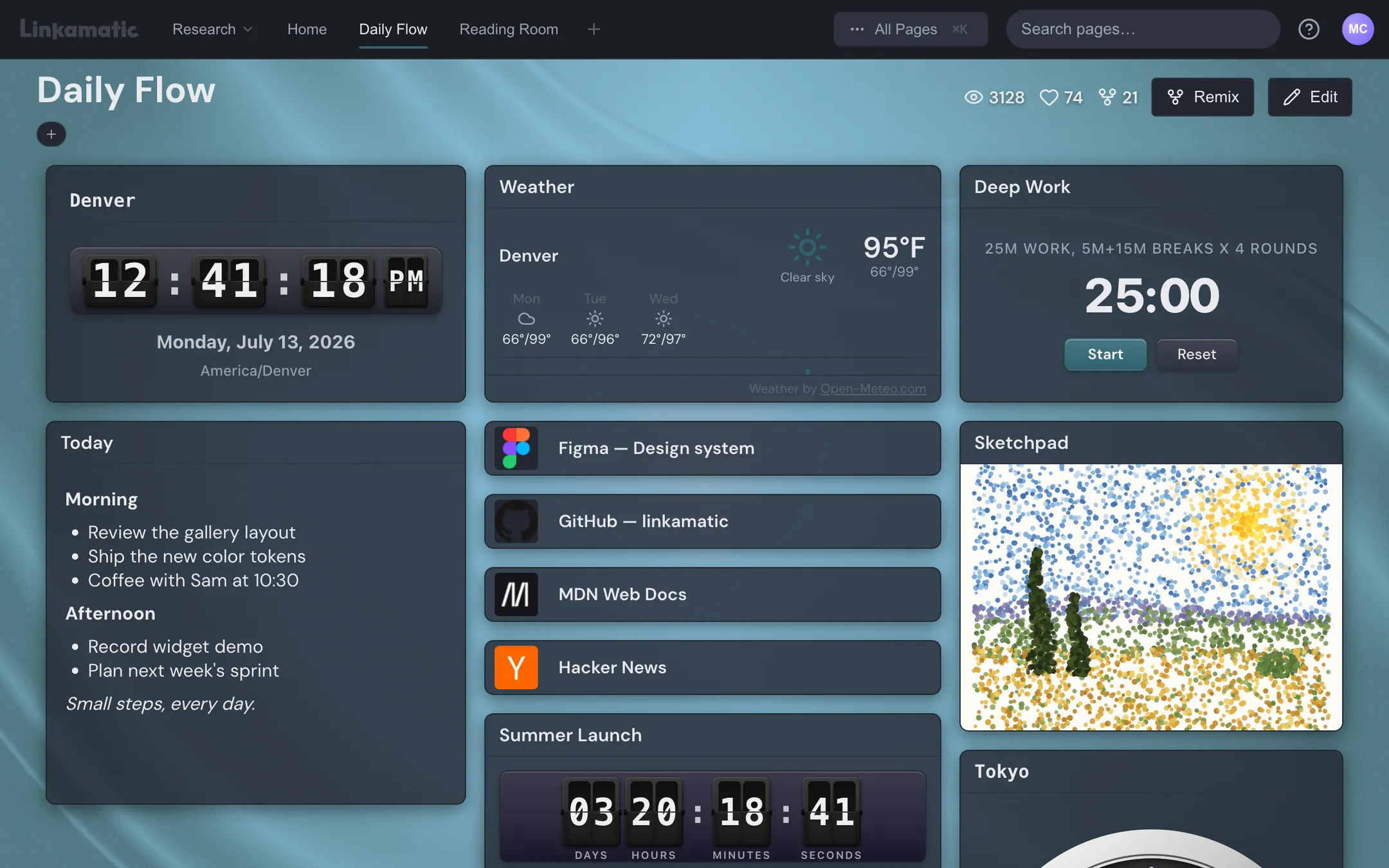
You can build that without any special browser integration, because it just needs to be a URL. Linkamatic is a free tool for assembling exactly this kind of page: drag links and small widgets (clock, weather, calendar, notes, focus timer, watchlists, search) onto a grid, theme it, and every page gets a plain address like linkamatic.com/p/yourname/daily. Paste that into the "Open a specific page" or "Enter URL" field you just learned about, and because it's an ordinary web address, the same dashboard follows you across Chrome, Edge, Firefox, and Safari on every device. No extension required for the startup-page route.
When your homepage won't stick
If you save a homepage and it reverts the next time you launch, the browser isn't ignoring you. Something is overriding it: an extension, a hijacker, sync from another device, or a policy on a managed machine. Work through it in this order rather than nuking your settings first.
- Remove recently added or unfamiliar extensions, then restart and test. Browser-hijacker extensions reset your start page on every launch.
- Run a malware scan. Hijackers that aren't extensions live deeper and reinstall themselves.
- Type chrome://policy or edge://policy in the address bar. A HomepageLocation or RestoreOnStartup entry means a policy is enforcing the page, and "Managed by your organization" near your menu confirms it.
- Reset the browser to defaults only as a last resort, since it wipes your other customizations too.
On a work or school device, that policy is usually intentional and locked centrally, so you can't override it no matter how many times you save. Stop fighting it. Ask whoever runs your IT to change it, or set up your real dashboard somewhere the policy doesn't reach, like a bookmark or a home-screen shortcut you control.