When you have a question, run into a bug, or want to send feedback, the contact form is how you reach the Linkamatic team. You write a short message and send it, and the team replies by email — so the whole exchange lives in your inbox, where it's easy to find and follow. You don't need an account to contact support, though being signed in makes the form a little shorter.
Where to find the contact form
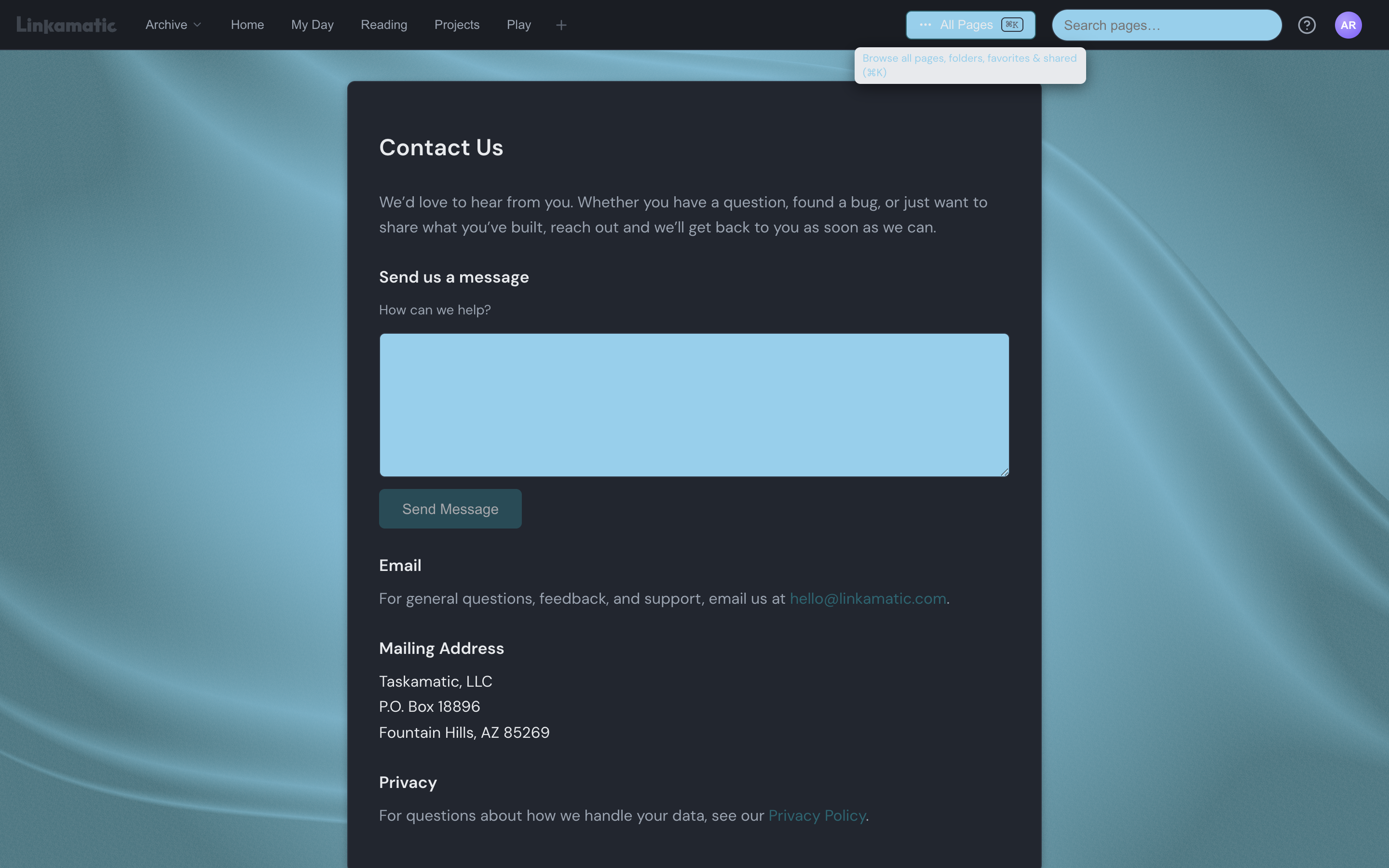
The most direct way is the Contact page at linkamatic.com/contact. You can also reach it from a few other spots:
- The help menu in the top bar — click the question-mark (?) icon and choose Contact support.
- The Contact link in the footer at the bottom of Linkamatic's public pages, like the blog and this Help Center.
- The Need help signing in? link on the login screen, if you're locked out of your account.
Filling out the form
The form itself is short. The message box, labeled How can we help?, is where you describe your question or problem in your own words — it's the one part you always fill in.
If you're signed in, that's all you need: the form shows a short note confirming which account you're signed in as, and Linkamatic uses the email address on that account to reply. If you're signed out, two more things appear on the form — a Your email field, so the team has somewhere to write back, and a quick human-verification check that confirms you're a real person (a Cloudflare Turnstile challenge) and keeps automated spam out. Fill those in, then click Send Message.
What happens after you send
Once your message goes through, Linkamatic confirms it was sent and shows a reference number for your new support conversation — something like [ID:XXXXXXXX]. You also get an acknowledgement email that carries the same reference number in its subject line and body, so you know it arrived.
From there, the conversation continues by email. When the team replies, it lands in your inbox; to respond, reply to that email the way you'd reply to any message. Your reply is matched to the same conversation and added to the thread, so the back-and-forth stays together in one place. There's no separate support inbox to check inside Linkamatic — your email is the thread.
If a reply ever can't be matched — for example, it's sent from a different address or the reference number is missing — Linkamatic emails you to say so and points you back to the Contact page to start again.
Writing a useful message
The more the team knows up front, the faster it can help. When something isn't working, it's worth including:
- What you were trying to do, and what happened instead.
- The web address (URL) of the page where it happened.
- The browser and device you're using — for example, Chrome on a Windows laptop, or Safari on an iPhone.
- The exact wording of any error message you saw.
Reporting a page is different
The contact form is the right place for questions, feedback, and trouble with your own account or the app. Flagging someone else's public page for breaking the rules works differently — it has its own report option on the page. See reporting a page for how that works.