Linkamatic can email you when other people interact with your pages: when someone invites you to collaborate, accepts a collaboration invite you sent, remixes a page, or adds one of your pages to their favorites. The notification settings page is where you choose which of these email notifications land in your inbox and switch off the ones you would rather not receive. Each choice applies to every future event of that type.
To open it, go to linkamatic.com/settings/notifications. The page lists one toggle for each kind of notification, with a short line under each label describing exactly what that email covers, and a Save button below the list.
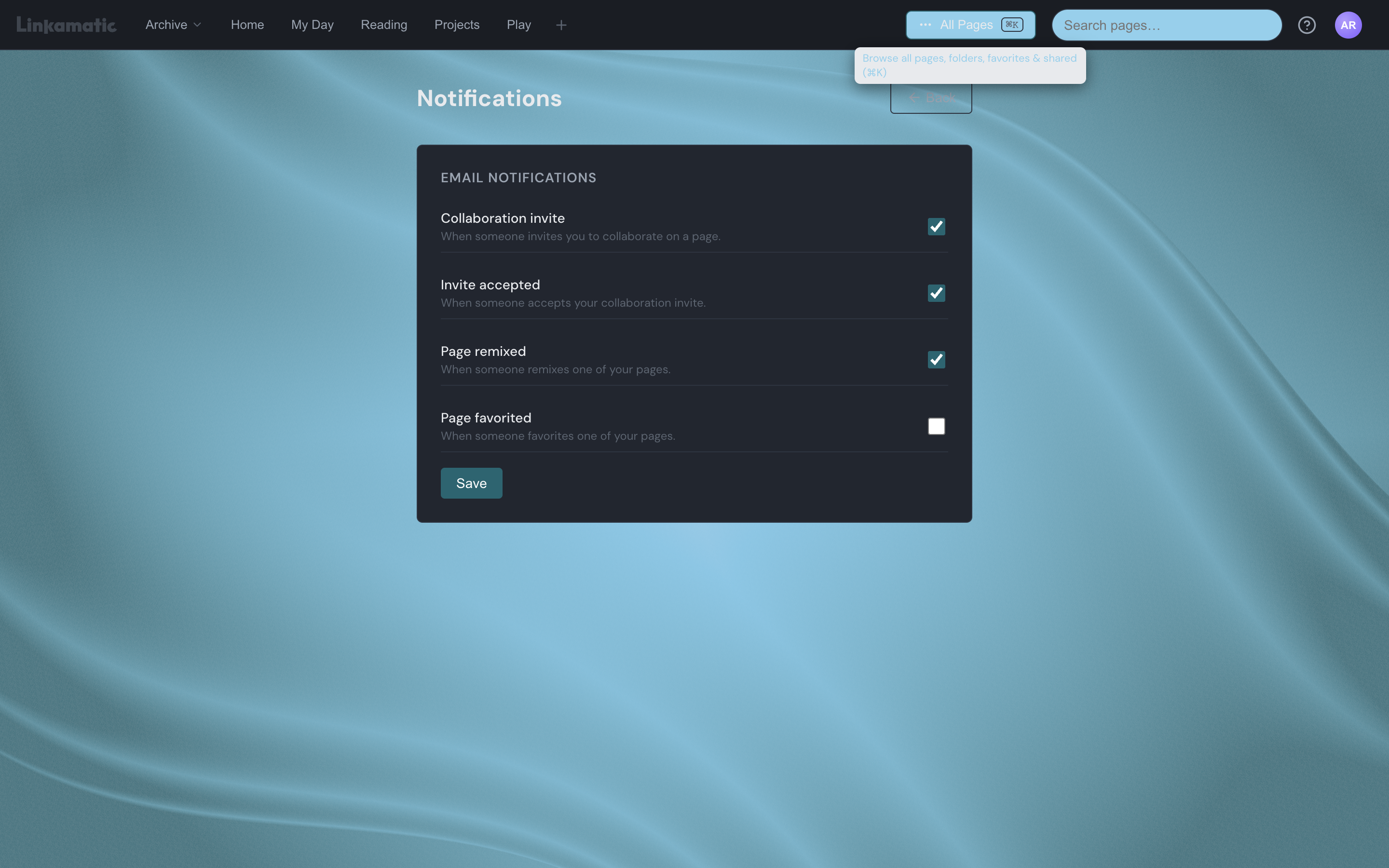
What each notification controls
Every checkbox turns one type of email on or off. A checked box means Linkamatic sends that email; an empty box means it does not. The table below lists each notification, when it is sent, and whether it starts switched on for a new account.
| Notification | When you receive the email | Default |
|---|---|---|
| Collaboration invite | When someone invites you to collaborate on a page. | On |
| Invite accepted | When someone accepts your collaboration invite. | On |
| Page remixed | When someone remixes one of your pages. | On |
| Page favorited | When someone favorites one of your pages. | Off |
The first two notifications are about collaboration — the invitations other people send you, and the replies to invitations you send. Collaboration explains how invites and shared pages work. The other two tell you when someone remixes one of your pages or saves it to their favorites.
Default settings
Three notifications are on by default — Collaboration invite, Invite accepted, and Page remixed — so you hear about collaboration and remixes without changing anything. Page favorited starts off, because a widely shared page can be favorited many times and those emails add up quickly. Turn it on if you want to know about every favorite.
Changing your preferences
- Open the notification settings page.
- Check a box to start receiving that email, or clear it to stop.
- Click Save below the list.
When your changes are stored, a "Preferences saved." message appears. Preferences take effect immediately: you will not receive another email for a type you switched off, and you will start getting the ones you switched on the next time that event happens.
Emails you cannot turn off
A few emails are not controlled on this page and are always sent, because they keep your account working and secure. The message that verifies your email address and the password reset email go out no matter what you choose here. The toggles on this page affect only the notifications listed above.
Good to know
Where are these emails sent?
Notifications go to the email address on your account. If you change that address from your profile settings, verify the new address first; after that, notifications arrive there.
Can I get these notifications inside the app instead of by email?
No. These settings control email only. Linkamatic does not send in-app notifications for these events, so email is how you find out about them.