Your account and profile settings are where you manage how you show up in Linkamatic and how you sign in. From one place you can change your display name and avatar, update your email or password, connect a Google account, and log out. It all starts from the account menu in the top bar.
The account menu
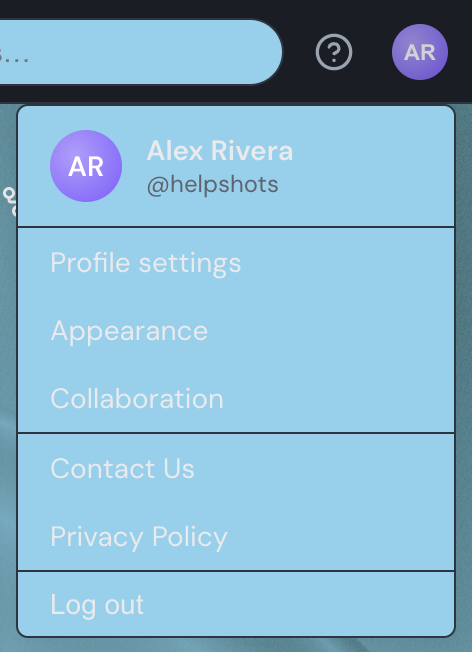
The account menu sits on the right side of the top bar, behind your avatar. Click your avatar on any page to open it. The top of the menu shows your avatar, display name, and username so you can confirm which account you're signed in as; none of that is editable here.
- Profile settings — your display name, avatar, email, password, and connected accounts.
- Appearance — themes and how your pages look.
- Collaboration — pages other people have shared with you.
- Contact Us and Privacy Policy — support and legal pages.
- Log out — end your session on this device.
Appearance and Collaboration open their own settings pages — see Appearance and themes for what those options cover.
Editing your profile
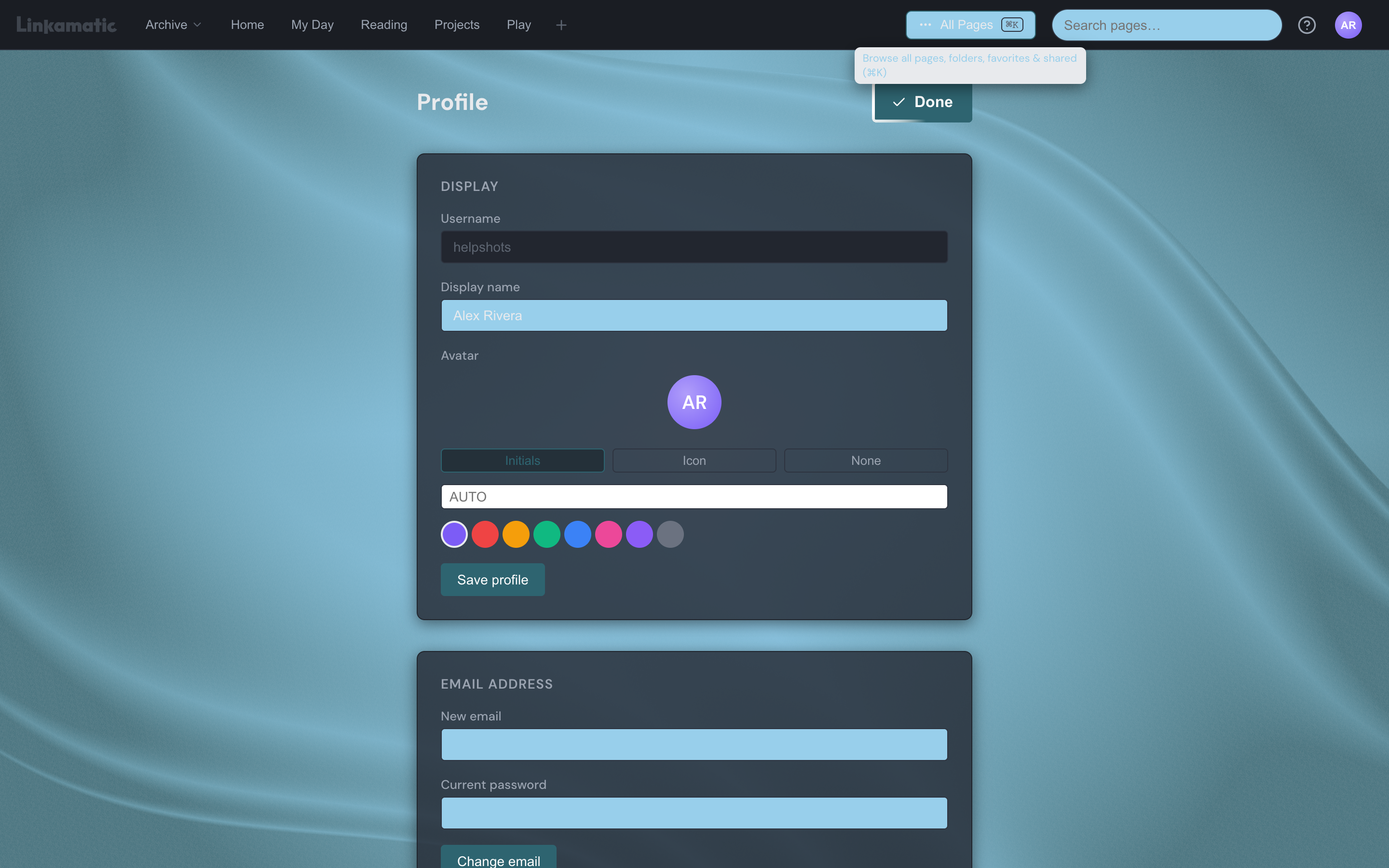
Choose Profile settings from the account menu to open your profile page, where you set your display name and avatar.
Your display name is how you appear across Linkamatic — in the top bar, page headers, and collaborator lists. Edit it in the Display name field, up to 80 characters, and click Save profile. Just above it, your username is shown read-only: usernames can't be changed after sign-up, because your page web addresses are built from it.
Your avatar is the circle that represents you throughout the app. In the avatar picker you choose a type — Initials, Icon, or None — and a background color from eight swatches. For Initials, type a one to three character override or leave it blank to use letters from your display name; for Icon, pick one from the built-in gallery. A live preview updates as you make changes, and Save profile keeps them.
Changing your email
Open Profile settings and find the Email address section to move your account to a new address.
- Enter your new address in the New email field.
- Type your current password so Linkamatic knows it's you.
- Click Change email.
Linkamatic sends a verification link to the new address, and your old email keeps working for sign-in until you open that link — the change only takes effect once the new address is confirmed. While a change is pending, the page shows a banner with the new address and a Cancel button to call it off before you verify. If the address already belongs to another account, or your password is wrong, the change is refused with a message explaining why.
Changing your password
In the Password section of Profile settings, enter your current password, then your new password twice, and click Change password. New passwords must be at least 8 characters. Changing your password signs you out on your other devices, while your current session stays active.
Resetting a forgotten password
If you can't remember your password, you don't need to be signed in. On the login page, click the Forgot your password? link, enter your email, and click Send reset link. Linkamatic emails you a reset link that expires in one hour; open it to choose a new password.
Connected accounts
The Connected accounts section of Profile settings lists every account you can sign in with — Google, Microsoft, or both — each with its own Disconnect button, and a Connect button for any provider you have not added yet. Using one means you can skip creating and remembering a password.
For how to sign up with a provider, add one to an account you already have, and what to do when a Microsoft sign-in is refused, see Signing in with Google or Microsoft.
Logging out
To log out, open the account menu from your avatar and click Log out. Your session ends and you're taken back to the login page. Even if the network is down, your device is still signed out and sent to login, so logging out on a shared computer is safe.
Good to know
Deleting your account
At the bottom of Profile settings, the Danger zone holds Delete my account. Deleting asks you to re-enter your password and can't be undone: your pages are made private, and your data is kept but becomes inaccessible.