Linkamatic’s themes and appearance settings let you control how the whole app looks — the background, colors, fonts, and widget styling. You start from a ready-made theme, then fine-tune the details to taste. Every change applies to your entire account view, not only the current page.
You can reach these settings from your account menu (the avatar in the top bar), or by visiting /settings/appearance directly. The page has two parts: a Theme picker at the top, and a Customize Theme section below it for adjusting the details. Changes take effect as you make them, so there is no separate save step.
Choosing a theme
Linkamatic ships with six themes, each setting a coordinated background, accent color, font, and widget style in one click. You first pick a theme when you set up your account, and you can switch here at any time. Click a theme card to apply it and the interface updates right away. If you change your mind before a choice settles, a Revert to saved theme link returns you to your last saved theme.
| Theme | Mode | Look |
|---|---|---|
| Breeze | Light | Clean and bright — the default theme. |
| Slate | Dark | Minimal dark grey. |
| Ocean | Dark | Deep blue tones. |
| Ember | Light | Warm sunset tones. |
| Forest | Light | Green, earthy tones. |
| Midnight | Dark | Deep, near-black tones. |
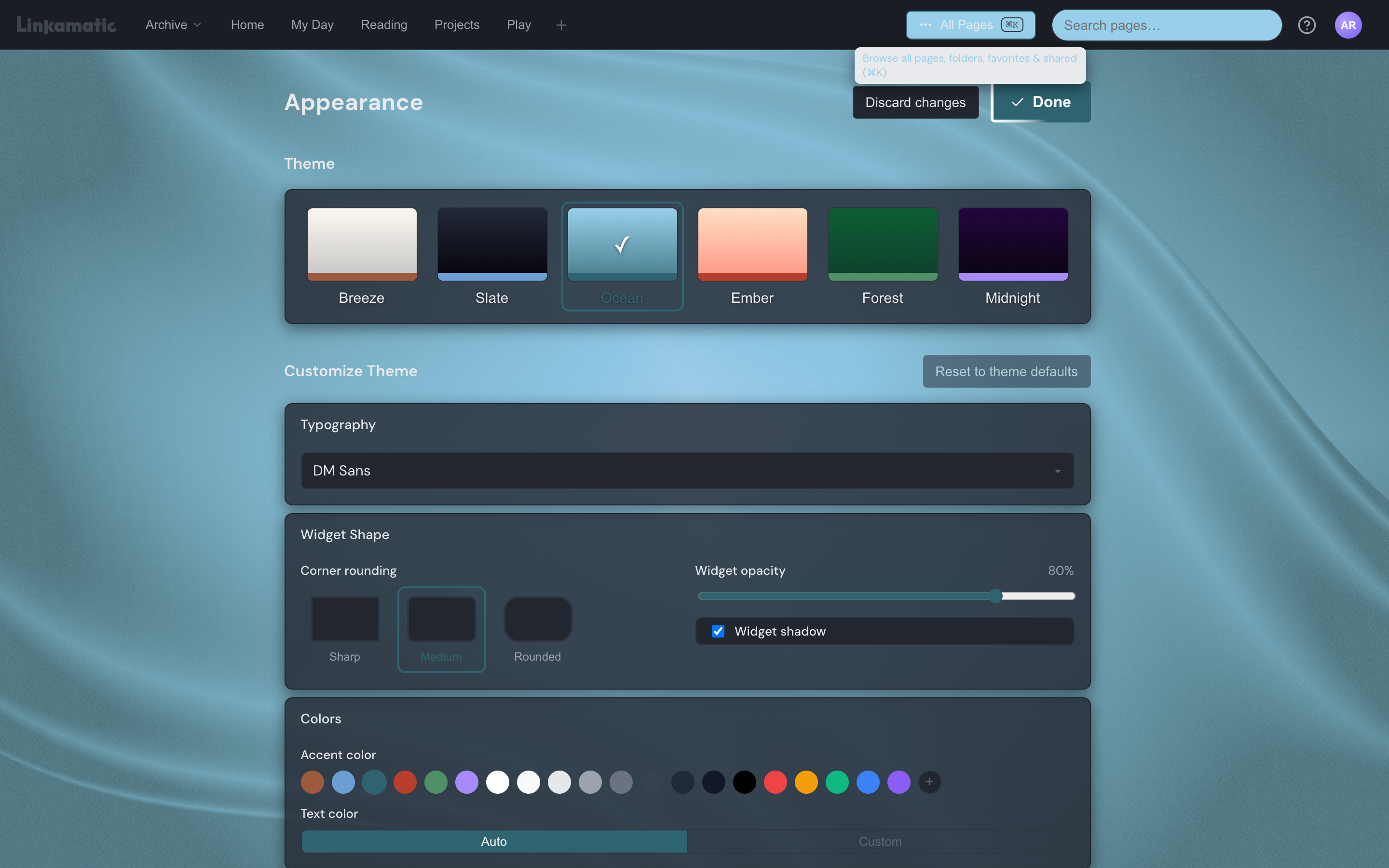
There is no single light-and-dark switch. Each theme is either light or dark, so you move between them by choosing a light theme (Breeze, Ember, or Forest) or a dark one (Slate, Ocean, or Midnight). Before you first log in, Linkamatic follows your device’s system setting — dark devices open on Slate and light devices open on Breeze — until you choose your own.
Fonts, colors, and widget shape
The Customize Theme section adjusts individual parts of the active theme. Every change previews live on the page behind the settings.
| Setting | What it does |
|---|---|
| Font | Sets the typeface for all text across Linkamatic — body, headings, navigation, and widgets. Ten fonts are offered across sans-serif, serif, display, and monospace styles (such as Inter, Lora, and JetBrains Mono), and each one is shown in its own typeface so you can preview it. |
| Accent color | The highlight color used for selected items and controls. Pick from a palette of swatches or set a custom color. |
| Text color | Auto matches the text color to the theme for you; Custom lets you set your own. |
| Corner rounding | How rounded widget corners are: Sharp, Medium, or Rounded. |
| Widget opacity | How see-through widget cards are, from fully transparent to solid. |
| Widget shadow | Turns a soft drop shadow beneath widget cards on or off. |
You can set the accent color freely, but the background colors themselves belong to each theme and are not edited one by one — choose a different theme for a different background palette. For more on the widget cards these settings shape, see the widgets basics guide.
Animated backgrounds
Every theme includes two background styles, chosen in the Page Background section: Fixed and Shader. Fixed shows a calm two-color gradient. Shader shows a gently animated, full-screen background that drifts behind everything on the page. Shader is the default for every theme.
Each theme’s gradient and shader are pre-designed to match its colors, so there are no separate background color controls to set.
Saving and undoing changes
Because changes save on their own as you make them, there is no Save button. Two controls let you step back: Discard changes, in the page header, returns everything to your last saved settings, and Reset to theme defaults restores the current theme’s original look, clearing any customizations you made to it.
Good to know
Does my theme apply to every page or just one?
Your theme applies to your whole account — everything you see across Linkamatic, on every page and on every device you log in from. There is no per-page theme; appearance is a single personal setting.
Do other people see my theme on the pages I share?
No. Your theme is a personal preference for your own view. People who open your shared pages see them in their own theme, not yours.
If I customize a theme and switch away, do I lose my changes?
No. Linkamatic remembers your customizations for each theme separately. Tweak one theme, switch to another, and come back, and your earlier changes are still there.