Widgets are the building blocks of a Linkamatic page — link tiles, clocks, notes, RSS feeds, calculators, and more. You add, arrange, and set up widgets in edit mode, where every widget gains a small toolbar for moving, configuring, and removing it. This guide covers the basics that apply to every widget type; each widget also has its own guide for its specific options.
Turning on edit mode
You manage widgets in edit mode. On any page you can edit, click the Edit button in the page header, or double-click any widget, to switch it on. When you are finished, click Done in the header, or double-click a widget again to switch it back off.
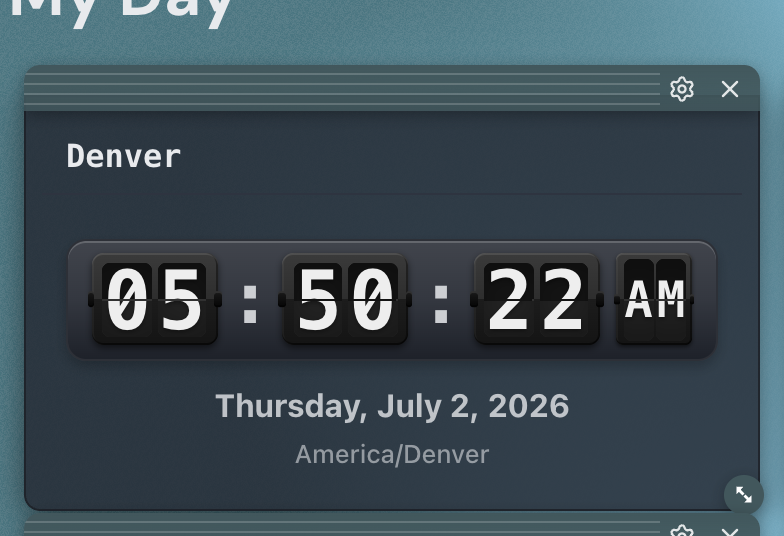
In edit mode, each widget shows a small toolbar along its top edge with three controls: a drag handle for moving it, a gear that opens its settings drawer, and an × that deletes it. The page header also swaps its view controls for editing actions — Add Widget, Condense, Done, and, if you own the page, Settings.
Adding a widget
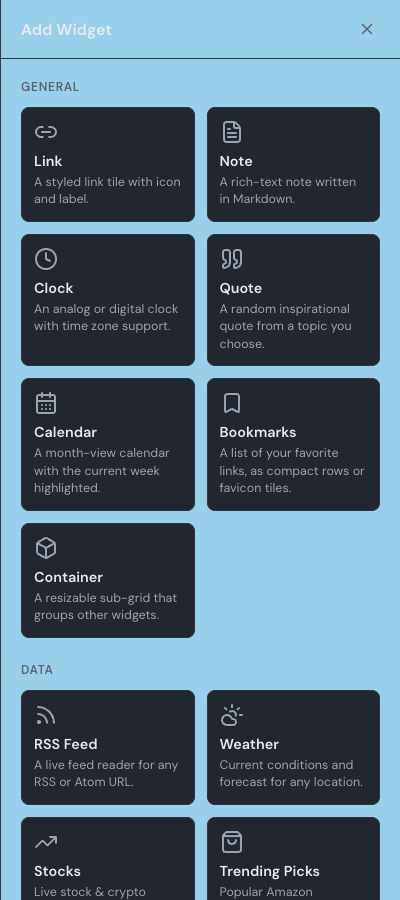
In edit mode, click Add Widget in the page header to open the widget picker. Widgets are grouped into four categories — General, Data, Utilities, and Fun — so you can browse everything available in a single panel.
- Open the page you want to add a widget to and click Edit in the page header.
- Click Add Widget.
- Choose a widget type from the picker.
- Fill in the options you want (you can change them anytime) and save.
The new widget is placed in the first open spot on your page at its default size. From there you can move it, resize it, and reopen its settings whenever you like.
Moving and resizing widgets
To move a widget, grab its drag handle — the strip along the top of the toolbar — and drag it where you want. To resize, drag any edge or corner. Widgets snap to a grid of square cells, so everything stays aligned. Some widgets have a minimum size that keeps their contents readable, so they will not shrink past a certain point.
While you drag, the page grows to the right so you can drop a widget past its current edge. A horizontal scrollbar appears only when a widget ends up beyond the visible area — otherwise the page stays sized to fit your screen.
Configuring and naming widgets
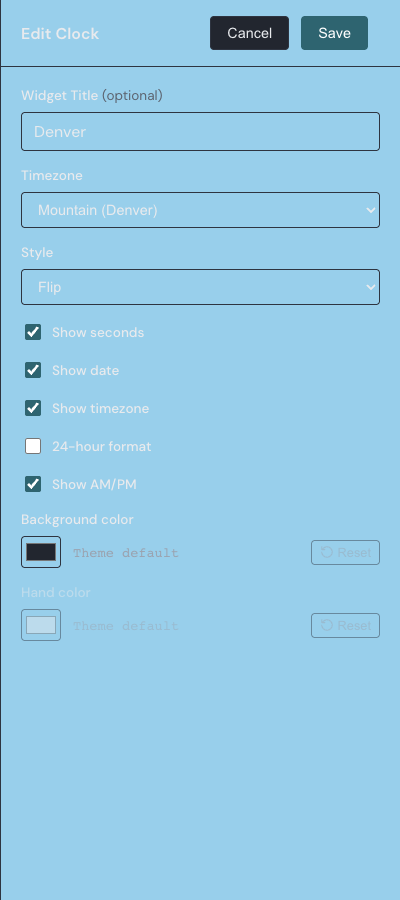
Click the gear on a widget’s toolbar to open its settings drawer. Each widget type has its own options — a clock’s time zone, an RSS feed’s URL, a link’s destination — and your changes take effect when you save.
Near the top of the drawer, most widgets have an optional Widget Title field of up to 80 characters. When you set it, a small header appears at the top-left of the widget; leave it blank and the widget uses its full area for content. Link tiles are the exception — they show their label inside the tile rather than in a header.
Deleting a widget
Click the × on a widget’s toolbar to remove it. Linkamatic asks you to confirm first, since deleting a widget cannot be undone. Confirm to remove it, or cancel to keep it in place.
Grouping widgets in a container
A Container is a special widget that holds other widgets inside its own mini-grid, which is handy for grouping related tiles into one block you can move together. You add and arrange widgets inside a container the same way you do on the page. See the Container widget guide for the details.
Good to know
How do I close up empty gaps?
In edit mode, click Condense in the page header. It pulls your widgets upward to collapse vertical gaps, tidying the layout without changing their order.
Is there a limit to how many widgets I can add?
Each page holds up to 64 widgets. If you need more room, create another page or group some widgets into a container.