In Linkamatic, a page is where your link tiles and widgets live. You can create and manage pages one at a time or by the dozen, group related ones into folders, and fine-tune each page from its settings panel. This guide walks through making a new page, organizing pages into folders, deleting the ones you no longer need, and the settings that control how a page behaves.
Creating a page
You can start a new page from two places: the plus button on the page tab bar at the top of the app, or the New Page button inside the All pages drawer. Both open the same New Page form.
- Click the plus button on the page tab bar, or open the All pages drawer and click New Page.
- Enter a Title. This becomes the page's name and, by default, the basis for its web address.
- Optionally set a custom Slug (the part of the address after your username): 3 to 64 characters, using lowercase letters, numbers, and hyphens. Leave it blank to generate one from the title.
- Optionally choose a Folder to create the page inside, or leave it as No folder to keep it at the top level.
- Click Create Page.
If the address you chose is already in use, Linkamatic tells you and offers an available alternative you can accept with one click. You can keep up to 100 pages; once you reach that limit, new pages are paused until you delete some.
Page addresses
Every page has its own web address in the form linkamatic.com/p/username/page-name. The username portion is fixed; the page-name portion comes from the slug you set when creating the page, or from one generated from the title.
Page addresses stay stable. If you later change your account username, links to your existing pages keep working and send visitors to the updated address automatically, so anything you have already shared does not break.
Organizing pages into folders
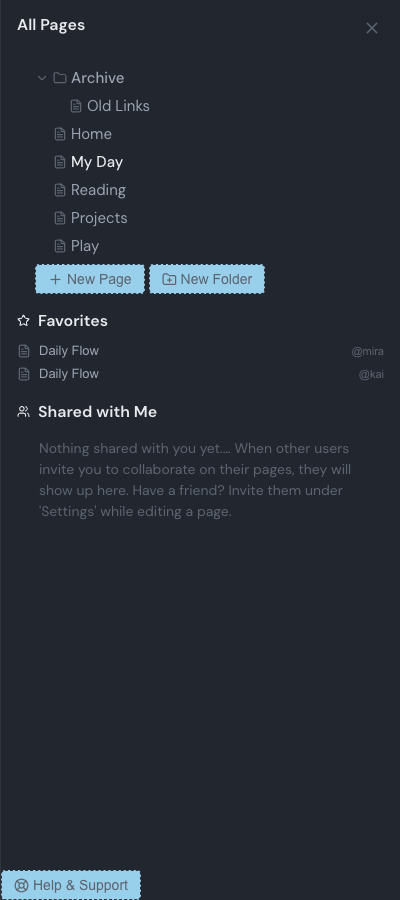
Folders group related pages together, such as Work, Reading, or a folder for each project. You manage folders in the All pages drawer.
To create a folder, open the All pages drawer and click New Folder. A new folder appears in the tree, ready to be renamed. You can keep up to 50 folders, and folders can be nested, though Linkamatic discourages going deeper than three levels.
Renaming a folder
Hover over a folder in the drawer and click the pencil, or double-click the folder's name. Type the new name, then press Enter to save or Escape to cancel.
Moving a page into or out of a folder
There are two ways to move a page between folders:
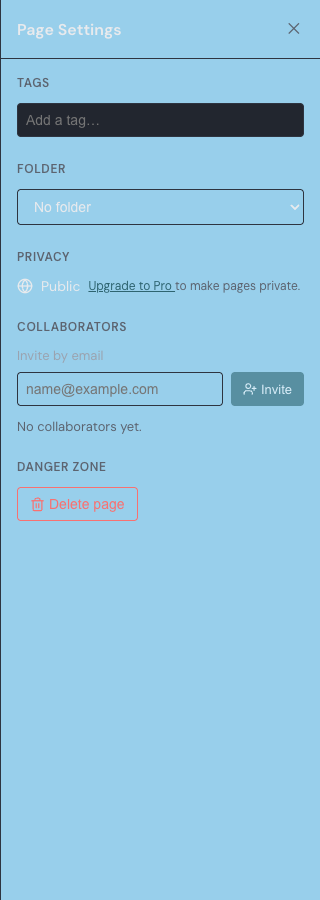
- Open the page's settings panel and pick a folder from the Folder dropdown, or choose No folder to move it back to the top level. The move takes effect immediately.
- In the All pages drawer, drag a page onto a folder row to move it in, or drag it onto the empty area of the tree to move it out to the top level.
You can also choose a folder for a page as you create it, and drag pages and folders around in the tree to reorder them.
Deleting pages and folders
Deleting a page
In the All pages drawer, hover over a page and click the X, then confirm. You can also delete a page from its settings panel, under Danger zone. Deleting a page permanently removes the page and all of its widgets, and it cannot be undone. You cannot delete your only page, so keep at least one.
Deleting a folder
Hover over a folder in the drawer and click the X. If the folder has nothing inside it, it is removed right away. If it contains pages or subfolders, Linkamatic asks what should happen to them:
| Choice | What happens |
|---|---|
| Save pages (default) | Removes only the folder. Its pages and subfolders move up one level and are kept. |
| Delete everything | Permanently deletes the folder and everything inside it: all pages, their widgets, and all subfolders. This cannot be undone. |
If you choose Delete everything while viewing one of the pages inside that folder, Linkamatic moves you to another of your pages, so you are never left on a page that no longer exists.
Page settings
Open a page's settings from edit mode: click Edit in the page header, then Settings. The settings panel is available to the page's owner and collects everything about the page in one place.
| Setting | What it does |
|---|---|
| Tags | Keywords that help you and others find the page. |
| Folder | The folder the page lives in, or No folder for the top level. |
| Privacy | Whether the page is Public or Private. |
| Collaborators | People you invite to edit the page with you. |
| Delete page | Removes the page and its widgets, under Danger zone. |
Tags tie into how pages are found and saved: see Favorites and tags for how tagging works. Privacy controls who can open a page and how you share it, covered in Sharing pages. To work on a page alongside other people, see Collaboration.
Good to know
Who can change a page's settings?
Only the page's owner can move it between folders, change its privacy, or delete it. Collaborators can edit the widgets and layout on a page you share with them, but not these page-level settings.
Does moving a page change its link?
No. A page's address does not include its folder, so moving it between folders, or out to the top level, never changes its link.