A page has one owner, but building it does not have to be a solo job. When you collaborate on a page, the people you invite can add, move, and edit its widgets right alongside you, while you keep control of who has access and how the page is set up. This is different from making a page public or letting others remix it — collaboration gives specific people edit access to your page.
Inviting a collaborator
Only a page owner can invite collaborators, and invitations always go out by email address. You do not need to know whether the person already uses Linkamatic — an invitation works either way.
- Open the page you own and click the Edit button in the page header.
- Click the Settings button to open the page settings.
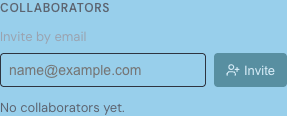
- Find the Collaborators section and enter the person's email address under Invite by email.
- Click Invite.
If the address belongs to someone who already has an account, they receive a collaboration invitation. If it does not, they receive a signup invitation that walks them through creating an account first. Either way, the person appears in your Collaborators list marked Pending — or Invited (not yet registered) if they have no account yet — until they respond.
The invitation email and link
The email Linkamatic sends contains a link that opens the invitation. What the invitee sees when they follow it depends on their account:
- Someone who has an account and is already signed in lands on their Collaboration page, where the invitation is waiting.
- Someone who has an account but is signed out is asked to sign in first, then taken to the same place.
- Someone brand new is sent to sign up. Once they create their account and confirm their email address, the invitation is linked to it and waiting for them.
An invitation link is valid for seven days. After that it expires, and the owner can send a fresh one.
Accepting or declining an invitation
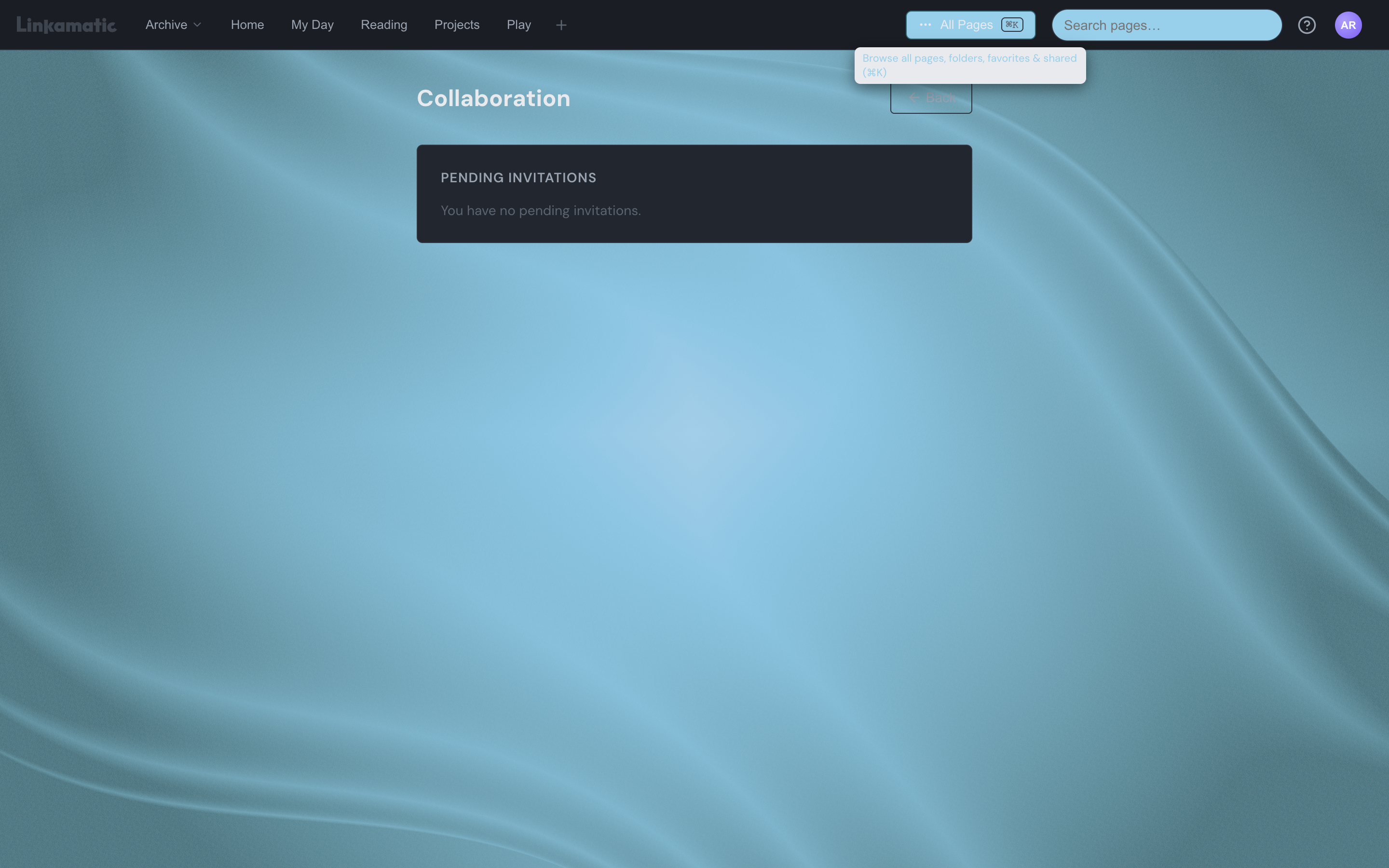
To find invitations sent to you, open the account menu under your avatar in the top bar and choose Collaboration. Your Collaboration page lists every pending invitation, showing the page name and who invited you.
- Accept gives you edit access to the page.
- Decline turns the invitation down and grants no access.
Pages you accept appear in the All pages drawer under Shared with me, so you can open them just like your own pages.
What owners and collaborators can do
Everyone on a page can work on its widgets together, but a few actions stay with the owner alone.
| Action | Owner | Collaborator |
|---|---|---|
| Add, move, resize, configure, and delete widgets | Yes | Yes |
| View the page while it is private | Yes | Yes |
| Change the page settings, privacy, and tags | Yes | No |
| Delete the page | Yes | No |
| Invite or remove collaborators | Yes | No |
| Transfer ownership | Yes | No |
Removing a collaborator
Removing someone is an owner action, handled from the same Collaborators section in the page settings.
- Open the page, click Edit, then click Settings.
- In the Collaborators list, click the remove icon next to the person you want to take off.
- Confirm when asked.
Removal is immediate — the person loses edit access at once, even if they have the page open. You can remove anyone in the list, whether they have accepted or are still pending.
Transferring ownership
To hand a page off completely, use the Transfer ownership option at the bottom of the Collaborators section. You can only transfer to someone who has already accepted their invitation. Once you do, they become the page's owner and you stay on as a collaborator.
Good to know
Can I leave a page someone shared with me?
While an invitation is still pending, you can decline it from your Collaboration page. Once you have accepted, there is no button to leave on your own — only the page owner can remove a collaborator, so you would need to ask them to take you off.
How many people can I add to a page?
A page can have up to 10 collaborators, counting pending invitations and accepted collaborators together.
The person I invited never got the email.
Invitations are saved even when the email cannot be delivered, and Linkamatic tells you if a message did not go through. The person still shows up as pending, and anyone who already has an account can accept from their own Collaboration page. You can also remove the invitation and send it again. If you have sent many invitations in a short time, Linkamatic may ask you to wait before sending more.