Navigating your pages in Linkamatic happens from the top bar. The pages you use most sit as tabs across the top, the complete list of everything you own or follow lives in the All Pages drawer, and a search box lets you jump straight to a page by name. When you come back to the site, Linkamatic returns you to wherever you left off. This guide covers each of those controls and where to find them.
The page tab bar
Your pages appear as tabs in the top bar, directly to the right of the Linkamatic logo. Any page that is not filed inside a folder gets its own tab, labeled with the page title, and clicking a tab opens that page. The tab for the page you are viewing is marked with an accent underline, so you always know where you are.
- Folders appear as tabs with a small chevron. Click one to drop down a menu of the pages inside it, then pick a page to open.
- A private page shows a small lock on its tab.
- The plus button at the end of the row opens a dialog for creating a new page.
When you have more pages than fit across the bar, the tab row scrolls sideways, with a soft fade at each edge to show there is more. The search box, Help control, and your account menu on the right stay put and are never pushed off-screen.

The All Pages drawer
For the full picture — every page and folder you own, plus your favorites and the pages other people have shared with you — open the All Pages drawer. It slides in from the right, over the page you are on.
- Click the All Pages button at the right end of the tab bar, or press Cmd-K (Ctrl-K on Windows).
- Scroll through the sections: your complete page-and-folder tree at the top, then Favorites, then Shared with Me.
- Click any page to open it — the drawer closes as it takes you there.
The drawer also closes when you press Escape or click the dimmed area outside it. This is the same place you create, rename, reorder, and delete your pages and folders; see Creating and managing pages for those tasks.
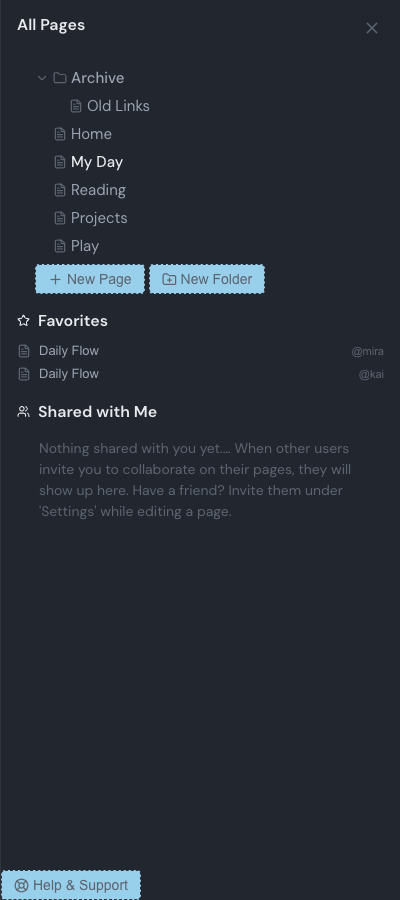
Favorites and pages shared with you
Two sections in the drawer collect pages that are not part of your own tree:
- Favorites lists pages you have favorited, each with the page title and the owner's username. If you have not favorited anything yet, the section shows a short prompt instead.
- Shared with Me lists pages you have been invited to and accepted as a collaborator, each showing the page title and the owner. Invitations you have not accepted yet do not appear here.
Click any entry to open that page. To learn how saving pages works, see Favorites and tags.
Where Linkamatic opens
Linkamatic remembers the last page you had open in each browser, so when you open the site while signed in it takes you straight there and you can pick up where you left off. If there is no recent page yet — right after you sign up, for example — it opens your home page instead.
You can return to your home page at any time by clicking the Linkamatic logo at the far left of the top bar.
Searching for a page
A search box labeled Search pages sits on the right side of the top bar. Start typing a page name and matching pages drop down; click one, or press Enter, to open it. Pressing Enter without choosing a result opens the full search page with all the matches.
For everything the search box can do, see Searching Linkamatic.