Linkamatic's search helps you find pages fast — your own and the public ones other people share. Search from the box in the top bar for quick results as you type, or open the full search results page to browse everything that matches. Every search looks at page titles and tags, so a clear title and well-chosen tags make a page easy to rediscover later.
Quick search from the top bar
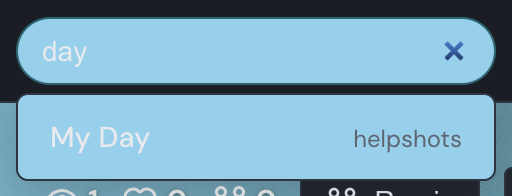
The search box sits in the top bar, alongside the page tabs. Start typing and Linkamatic searches after each keystroke, showing up to 10 matches in a floating panel just below the box. Each result lists the page title and the owner's username. There's no spinner while a search runs — the panel fills in as soon as results arrive, and it shows No results found when nothing matches.
You can drive the panel from the keyboard. Press the Down and Up arrow keys to move the highlight between results, Enter to open the highlighted page, and Escape to close the panel and return to the box. The panel also closes when you click outside it or clear the box.
What Enter does depends on the highlight. With no result highlighted, Enter opens the full search results page for whatever you typed. With a result highlighted, Enter jumps straight to that page instead. So you can open the top hit or step back to the complete list.
The full search results page
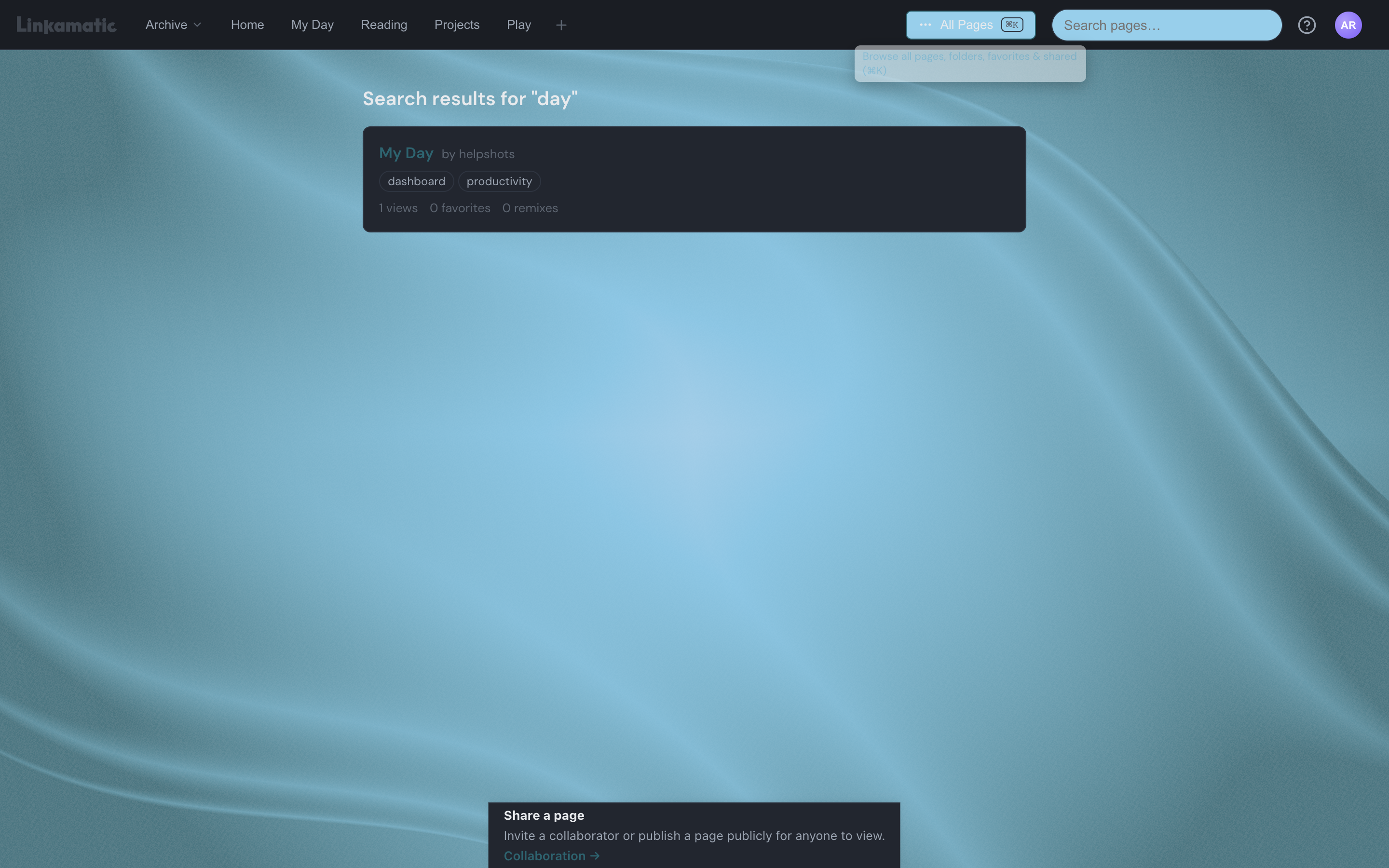
Press Enter with nothing highlighted to open the full results page at /search. It runs the same search but gives each match a fuller card: the page title, who owns it, its tags, and its view, favorite, and remix counts. If you're signed in, you can favorite any page that isn't your own directly from the results.
Results are paginated 20 at a time. When more pages match than fit on one screen, Prev and Next buttons appear at the bottom so you can page through them. Reach for this view when a query returns a lot of pages and the 10-result panel isn't enough.
What search looks through
Search matches two things: the page title and the page's tags. A page shows up when your term appears anywhere in its title or in any one of its tags — so searching a topic like photography finds a page tagged photography even when that word isn't in the title. It doesn't read the contents of widgets, so text inside notes, links, or feeds isn't searched.
- Public pages appear for everyone, signed in or not.
- Your pages — ones you own or collaborate on — also appear once you're signed in, private ones included.
- Other people's private pages never show up in your results.
Because tags are half of what search reads, giving pages clear tags makes them much easier to find again. See Favorites and tags for how to add them.
Tips for better matches
- Type at least two characters. One-character searches return nothing rather than an error.
- Case doesn't matter — Recipes and recipes return the same pages.
- Partial words work: typing phot matches Photography.
- Pages whose title begins with your term rank first, then exact tag matches, then titles that contain the term, and finally tags that contain it. Within each group, more popular pages — by views, favorites, and remixes — come first.
Search versus the Search widget
One thing this isn't: the Search widget. That is a box you add to a page to search the web through a search engine you choose, and it doesn't look through Linkamatic at all. The top-bar search described here only ever finds Linkamatic pages. See the Search widget guide to put web search on a page.