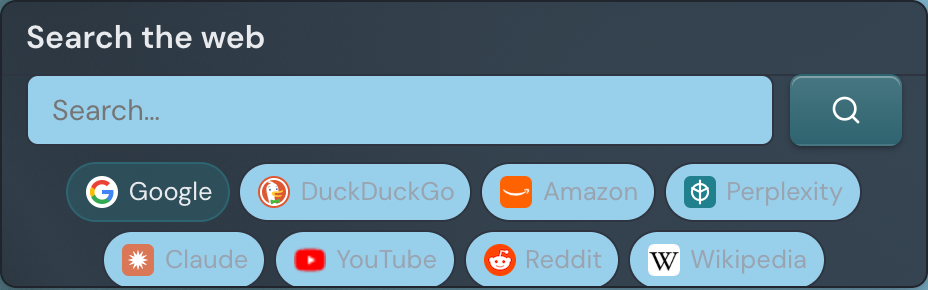
The Search widget puts a search box right on your page, so you can send a query to the web or an AI engine without first opening a browser home page or hunting for the right site. Type a phrase, pick a destination, and press Enter. It works well as the first thing on a start page, and it keeps your most-used engines one click apart instead of hidden behind a menu.
Adding the Search widget
- Open the page you want to add it to and click Edit in the page header.
- Click Add Widget.
- Choose Search from the picker (it is under Utilities).
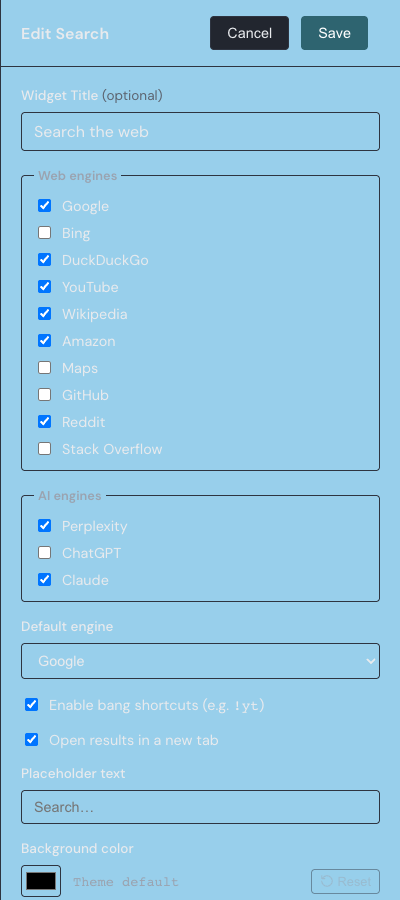
- Pick the engines you want, set a default, and save. You can change any of this later.
New to widgets? Widget basics covers adding, moving, and resizing them.
The engines you can search
The widget sends your query to a built-in set of engines, split into two groups. You choose which ones appear in the settings drawer.
Web engines:
- Bing
- DuckDuckGo
- YouTube
- Wikipedia
- Amazon
- Maps
- GitHub
- Stack Overflow
AI engines:
- Perplexity
- ChatGPT
- Claude
Switching engines
The engines you have enabled appear as a switcher. On a wide tile they show as a row of pills below the box, with the active engine highlighted — click a different pill to switch to it. On a narrow tile the pills collapse into a compact dropdown beside the box; open it and choose an engine. Either way, the default engine always sits first.
Whichever engine you pick stays selected for your next search too, until you change it. To run a search, press Enter or click the search button. Results open in a new browser tab by default, so your page stays put; turn off Open results in a new tab in settings to open them in the current tab instead. An empty box does nothing.
Bang shortcuts
A bang is a short prefix that sends one search to a specific engine without changing the engine you have selected. Start typing ! and a small list appears showing the engines you have enabled whose shortcut or name matches what you have typed so far, each with its bang and name — so you can discover them as you go. Typing ! on its own lists them all.
For example, type !yt cats to search YouTube for cats, !gh to reach GitHub, or !gpt explain quantum tunneling to send the prompt to ChatGPT. After the search runs, your selected engine is unchanged. In the list, move with the arrow keys and pick with Enter or Tab, or click a row; press Escape to close it. If a bang matches none of your enabled engines, it is dropped and the rest of your text is searched with the selected engine. You can turn bangs off entirely in settings.
Settings
| Setting | What it does |
|---|---|
| Title | An optional heading above the search box. Leave it empty for no header. |
| Web engines | Check the web engines to offer: Google, Bing, DuckDuckGo, YouTube, Wikipedia, Amazon, Maps, GitHub, Reddit, and Stack Overflow. |
| AI engines | Check the AI engines to offer: Perplexity, ChatGPT, and Claude. |
| Default engine | The engine selected when the widget loads, and the one shown first in the switcher. It must be one you have enabled. |
| Enable bang shortcuts | Turns the bang prefixes and their pop-up list on or off. On by default. |
| Open results in a new tab | On by default. Turn it off to open results in the current tab. |
| Placeholder text | The faint prompt shown in the empty box. Left blank, it shows the default prompt, Search…. |
| Background color | Sets the widget background. Clear it to follow the page theme. |
| Text color | Sets the text color. Clear it to follow the page theme. |
| Active engine color | The highlight color for the selected engine. Clear it to follow the page theme. |
Search the web, not Linkamatic
This widget sends your query out to the web and AI engines above — it does not look inside your own Linkamatic account. To find your own pages, links, and tags, use the search box in the top bar instead; searching Linkamatic explains how that works.