The Link widget saves one web address as a styled tile — an icon, a label, and an optional line of description — that you click to open the link. It is the most common widget on a Linkamatic page: use it to pin the sites you visit daily, like your email or a project dashboard, or to point people at another Linkamatic page. Give each tile its own colors and a page of links stays quick to scan.

Adding the Link widget
- Open the page you want to add it to and click Edit in the page header.
- Click Add Widget.
- Choose Link from the picker.
- Enter a URL and a label, adjust any other options (you can change them anytime), and save.
Settings
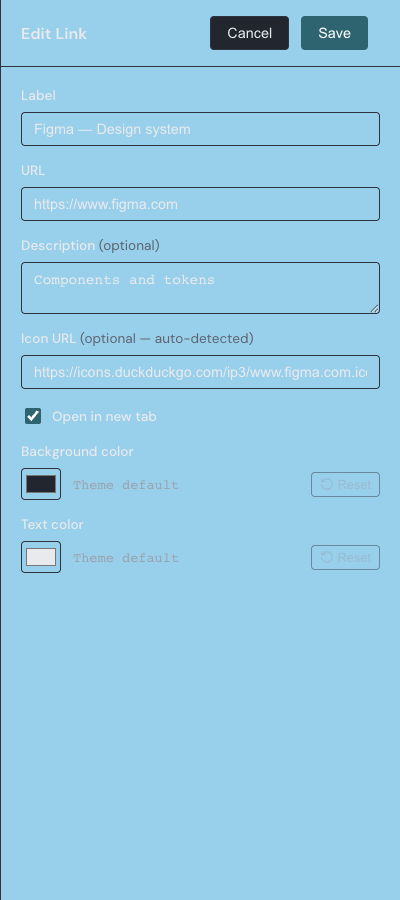
The Link widget's settings drawer holds these options. Only the URL and Label are required.
| Setting | What it does |
|---|---|
| Label | The name shown on the tile, next to the icon. Required; up to 80 characters. |
| URL | The web address the tile opens. Required, and must start with http:// or https://. |
| Description | A smaller subtitle shown under the label. Optional; up to 200 characters. |
| Icon URL | An image to use as the tile's icon. Optional — when left empty, Linkamatic finds the site's own icon for you automatically. |
| Open in new tab | When checked, the link opens in a new browser tab; when unchecked, it opens in the current tab. Checked by default. |
| Background color | The tile's background color. Defaults to your theme's widget background; use Reset to return to it. |
| Text color | The color of the label and description text. Defaults to your theme's text color. |
Icons and the fallback letter
When the Icon URL field is empty, Linkamatic looks up the site's own icon automatically — the same resolver the Bookmarks widget uses, which finds the best icon a site offers rather than only its basic favicon. Paste an image URL into the field to use your own icon instead. If no icon can be found — or the image fails to load — the tile falls back to the first letter of the label on a muted background, so every tile still shows something recognizable.
Opening the link
A Link tile can point anywhere on the web — an outside site, or another Linkamatic page whose full address you paste in. The whole tile is the clickable target, so a click anywhere on it follows the link. The Open in new tab setting controls where it opens: on, in a new tab; off, in the current one. While you are in edit mode, clicking a tile will not follow the link — that keeps your clicks free for dragging and resizing. Click Done to leave edit mode and the link works normally again.
To keep a set of related links tidy, drop several Link tiles into a Container widget and move them as one group. For a refresher on adding and arranging any widget, see Widget basics.