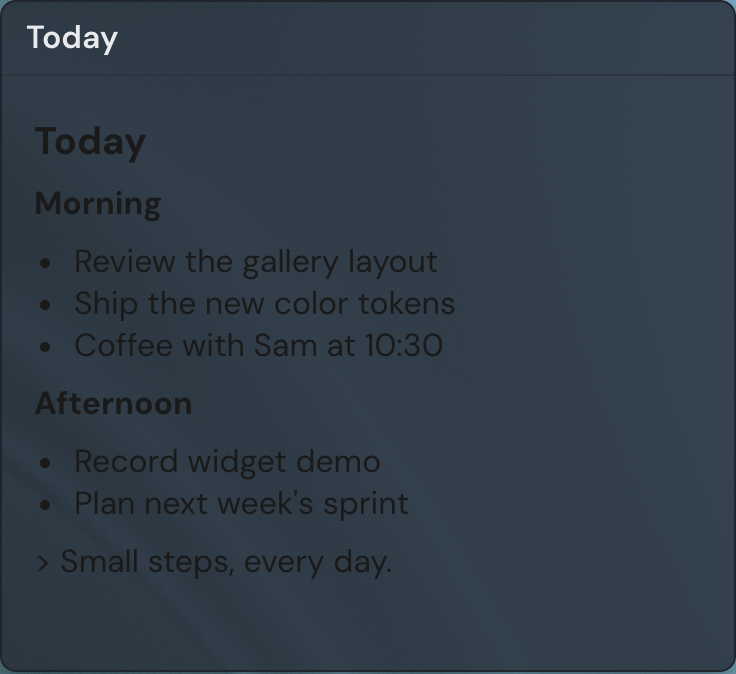
The Note widget puts a block of formatted text right on your page. You write it in Markdown, and Linkamatic renders it as headings, lists, links, and more. A note works well as a to-do list beside your links, a set of instructions on a shared page, or a scratchpad you keep next to your daily tabs.
Adding the Note widget
- Open the page you want to add it to and click Edit in the page header.
- Click Add Widget.
- Choose Note from the picker.
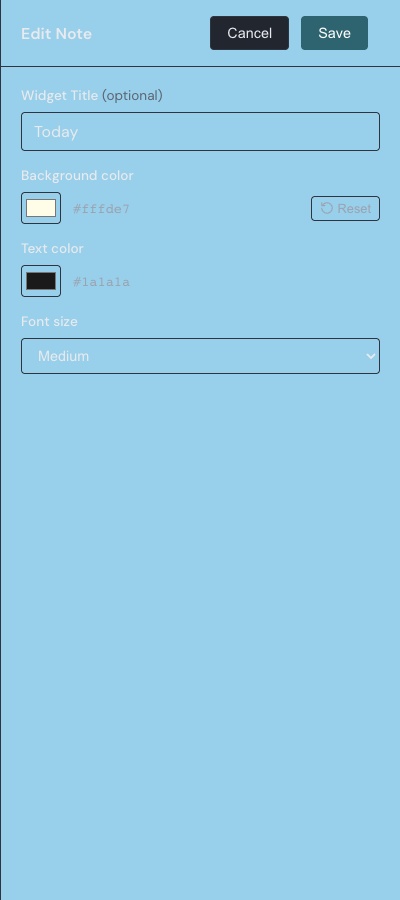
- Fill in the options you want (you can change them anytime) and save.
The picker options set how the note looks — its colors, size, and optional title. You write the actual text of the note on the widget itself, once it is on the page, which the sections below cover.
Settings
Open a note's settings from the gear on its toolbar in edit mode. Every option here controls the note's appearance; the text of the note is written on the widget, not in this drawer.
| Setting | What it does |
|---|---|
| Widget Title | An optional title shown in a small header above the note. Leave it blank for no header. Up to 80 characters. |
| Background color | The note's background color. It defaults to a pale yellow, and you can reset it to the theme default. |
| Text color | The color of the rendered text. |
| Font size | Small, Medium, or Large. Medium is the default. |
Writing and editing notes
To write or change a note, put the page in edit mode and click the note. A single writing surface opens where you type Markdown and watch the formatting take shape as you go — there is no separate preview pane, so what you type and what you see stay in one place.
The Help button in the note's toolbar opens a quick reference for the Markdown you can use. When you are done, click Done to return to the rendered view; clicking anywhere outside the note does the same thing. Press Escape to cancel instead — if you have unsaved changes, Linkamatic asks you to confirm before discarding them.
While the page is in edit mode, an empty note shows a 'Click to add a note' prompt to you. People who are only viewing your page see an empty widget until you add text.
Markdown you can use
Notes support a compact subset of Markdown. Here is everything you can use:
- Headings with #, ##, and ### for three levels
- Bold with **double asterisks** and italic with *single asterisks*
- Inline code in `backticks`, and fenced code blocks between triple backticks (no syntax highlighting)
- Bulleted lists starting with - or *, and numbered lists starting with 1.
- Links written as [label](url), where only http and https addresses are kept
- A horizontal rule from three dashes (---) on their own line
To break lines, end a line with two spaces for a soft break or leave a blank line to start a new paragraph. Raw HTML is escaped rather than rendered, and images cannot be embedded, so a note stays safe to share and remix. Rendered links open in a new tab.
How notes save
Notes save on their own. About two seconds after you stop typing, Linkamatic saves your changes, and it also saves when you click Done, click outside the note, or turn off the page's edit mode. There is no separate save button for the text of a note.
Notes pair well with your link tiles as labels, headers, or dividers on a page. For how widgets share the grid, see widget basics.