Getting started with Linkamatic takes a few minutes: create an account, answer a few optional questions, and Linkamatic builds your first page for you. This guide walks through signing up, the onboarding steps in order, and how to find your way around once you land on your new page.
Creating your account
You can sign up two ways from the join page: with an email address and password, or with your Google account. Either way, your username is permanent, so choose it carefully — it cannot be changed after sign-up.
Sign up with email
- Go to the join page and enter a username, display name, email address, and password. The password field shows a strength meter as you type.
- Complete the verification challenge, then click Create account.
- Check your inbox for the verification email and click the link inside. You cannot sign in until you verify.
- On the confirmation screen, click Continue to start setting up your account.
Sign up with Google
Click Continue with Google, pick your Google account, and approve access. Because Google confirms your email for you, there is no password to create and no verification email to wait for. You pick a permanent username to finish, then go straight into onboarding.
Setting up your first page
After you verify, Linkamatic walks you through a short, optional setup. A step indicator shows your progress, and every step has a Skip button, so you can change these choices later. The steps, in order:
- Choose your look — pick one of the built-in themes for your account.
- Tell us about yourself — add a profile avatar and, if you want, your location. Location powers weather and other local widgets and is never shown publicly.
- Your interests — choose up to three interests, and Linkamatic uses them to pick relevant widgets for your first page.
- Your RSS feeds — when you pick interests, Linkamatic pre-selects two news feeds for each one. Add more, swap them out, or choose none.
- The build screen — Linkamatic assembles your page while a progress bar and a short tutorial play. When it is done, a button opens your finished page.
Your new Home page
When onboarding finishes, Linkamatic creates your first page — called Home — at your personal address, linkamatic.com/p/username/home. It is assembled from the choices you made, so no two look alike.
Depending on what you picked, your Home page may include a clock set to your time zone, local weather when you have shared your location, news feeds from the sources you chose, and collections of quick links tied to your interests. Everything on the page is yours to rearrange, add to, or remove.
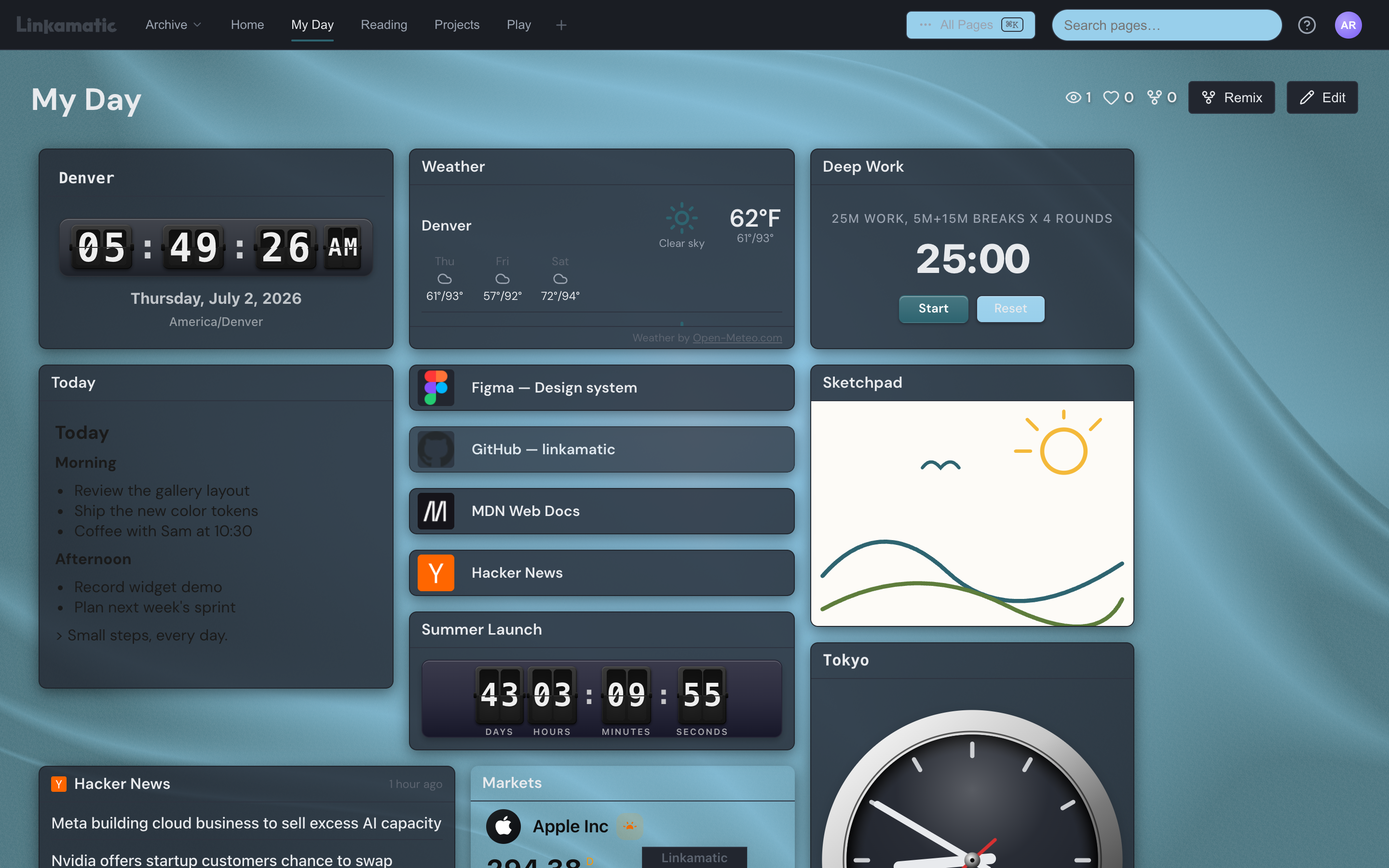
Finding your way around
The top bar runs across the top of the app. From left to right it holds the Linkamatic logo, your page tabs, a search box, the help menu (the ? icon), and your account menu (your avatar).
Your pages appear as tabs below the logo. To see all of them at once, including folders, open the All pages drawer from the page tab bar.
To change a page, click the Edit button in its header (or double-click any widget) to enter edit mode. Add widgets with the Add Widget button, drag them around the grid to move them, and drag an edge to resize. Click Done when you are finished. To learn how widgets work, see Widget basics.
Good to know
What if the verification email does not arrive?
Use the Resend email link on the confirmation screen, and check your spam folder. You need to verify before you can sign in.
Can I change my theme or profile later?
Yes. Your theme, avatar, and location are all editable from your account settings at any time. For the theme options, see Appearance and themes.