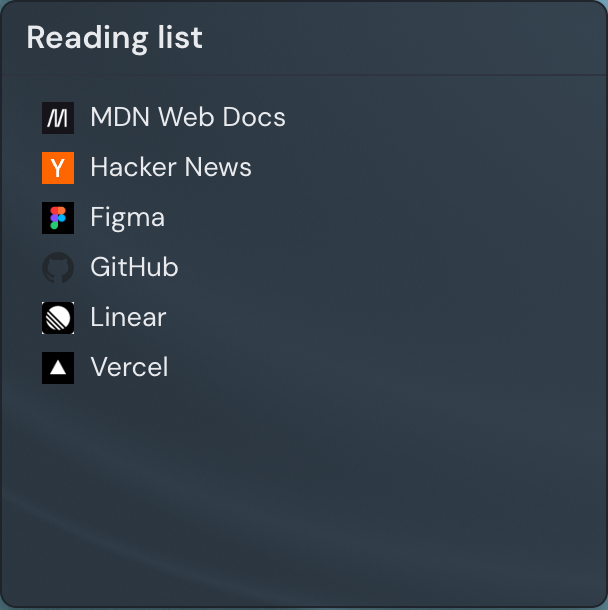
The Bookmarks widget keeps many links together in one widget, so a whole set of related sites lives in a single tidy place instead of spread across separate tiles. Point it at your daily news sites, a project's tools, or a reading list, then open any of them with a click. You can show the collection as a compact list of rows or as a grid of favicon tiles, up to 100 bookmarks in one widget.
Bookmarks widget vs. single link tiles
Both save links, but they suit different jobs. A Bookmarks widget packs many links into one compact list or tile grid, while a single link tile gives one link its own tile with a description and custom colors.
- Choose the Bookmarks widget for a set of many related links you mostly want to click — news sites, tools, a reading list.
- Choose a single link tile when one link should stand out on its own, with a description, custom icon, or its own colors.
Adding the Bookmarks widget
- Open the page you want to add it to and click Edit in the page header.
- Click Add Widget.
- Choose Bookmarks from the picker, under the General category.
- Add your first link and pick a display mode, then save — you can change everything later.
Settings
Open a widget's settings from the gear on its edit-mode toolbar. The drawer holds these options:
| Setting | What it does |
|---|---|
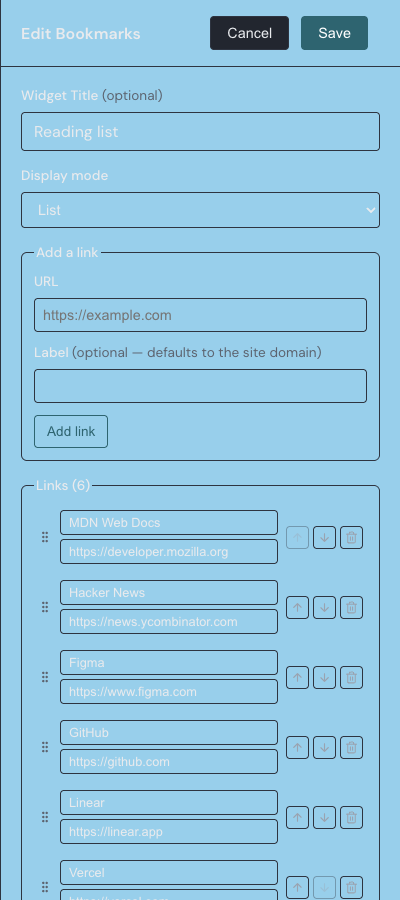
| Title | Optional heading shown above the bookmarks. Leave it empty for no header; up to 80 characters. |
| Display mode | Switches between List (compact rows) and Tiles (favicon grid). New widgets start in List. |
| Show site names under icons | In Tiles mode, shows each label as a caption under its favicon. Turn it off for icons only. |
| Add a link | Enter a URL starting with http:// or https:// and an optional Label. Leave the label empty and it defaults to the site domain. |
| Links | The list of saved bookmarks, where you edit a label or address, reorder, or delete each one. |
List and tile modes
In list mode each bookmark is a compact row: a small favicon and a single-line label. Widen the widget and the list flows into more than one column to fill the space. A label that is too long is cut off with an ellipsis, and hovering over it shows the full text.
In tile mode each bookmark becomes a larger favicon tile. Turn on Show site names under icons to caption each tile with its label, or turn it off for a clean grid of icons. Both modes reflow as you resize the widget, and when the collection is taller than the widget it scrolls.
Adding and organizing bookmarks
In edit mode a quick-add box sits at the top of the widget. Type a web address, press the plus button, and the link joins the list with a label taken from its domain. You can also add links from the settings drawer, where you can give each one a custom label. The quick-add box and the management controls appear only when you can edit the page; visitors just click the links.
Linkamatic fetches the favicon for each site automatically, so you never paste icon addresses. While an icon loads, or when a site has none, a small letter icon stands in and the link still works.
To curate the collection, open the settings drawer. Drag a link by its grip handle, or use the up and down arrows, to set the order — the order in this list is the order shown in both display modes. Edit a link's label or address inline, or remove it with the trash button.
Each widget holds up to 100 links; past that, adding is blocked with a note about the limit. Clicking any bookmark opens its site in a new browser tab.