The Calendar widget keeps a month-view calendar on your page, with today and the current week highlighted so you can tell where you are at a glance. It is a passive reference to set next to your links or notes — handy for checking what weekday a date lands on, or just keeping the current month in view while you work.
Adding the Calendar widget
- Open the page you want to add it to and click Edit in the page header.
- Click Add Widget.
- Choose Calendar from the picker (it is in the General category).
- Fill in the options you want (you can change them anytime) and save.
Settings
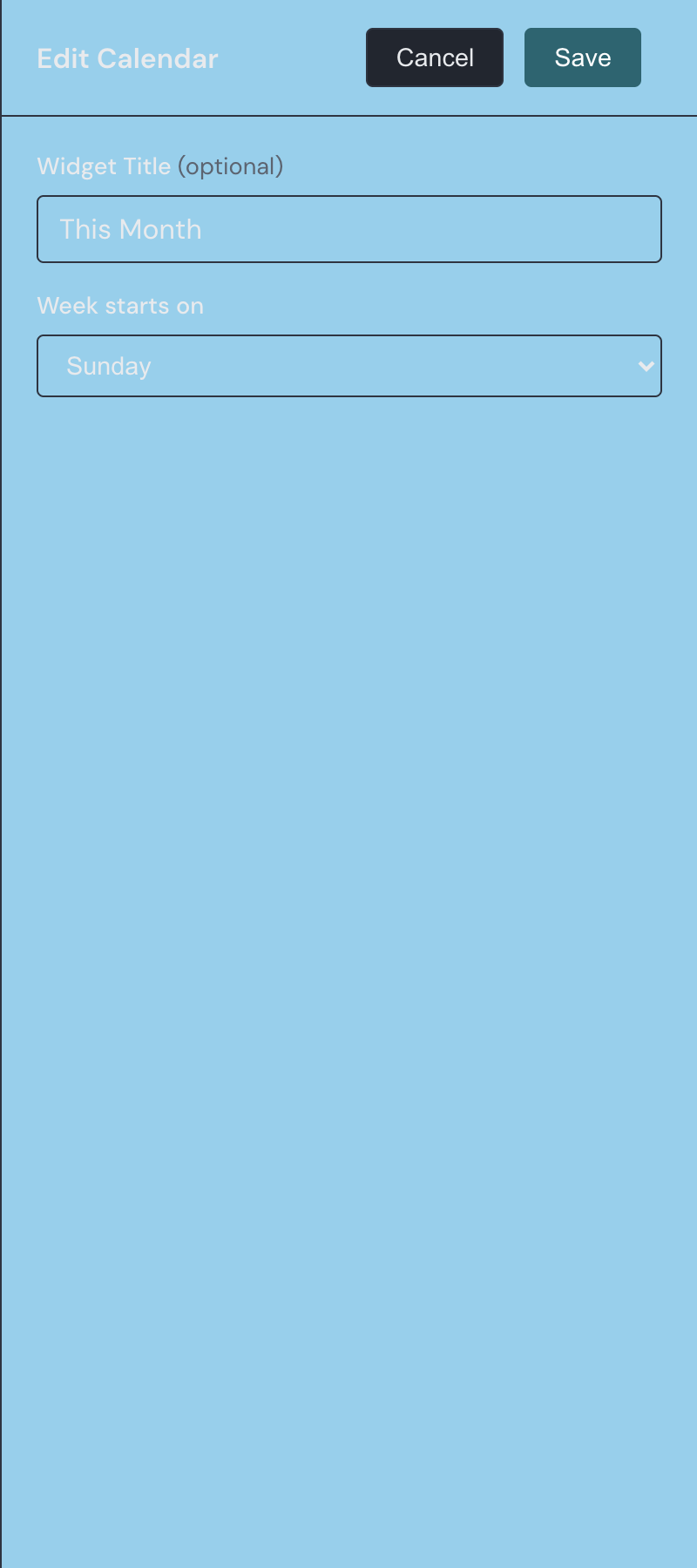
Open a calendar's settings from the gear on its toolbar in edit mode. There are two options.
| Setting | What it does |
|---|---|
| Widget Title | An optional title shown in a small header above the calendar. Leave it blank for no header. Up to 80 characters. |
| Week starts on | Whether the week begins on Sunday or Monday. Sunday is the default; switching to Monday reorders the weekday labels and every date column to match. |
Reading the month at a glance
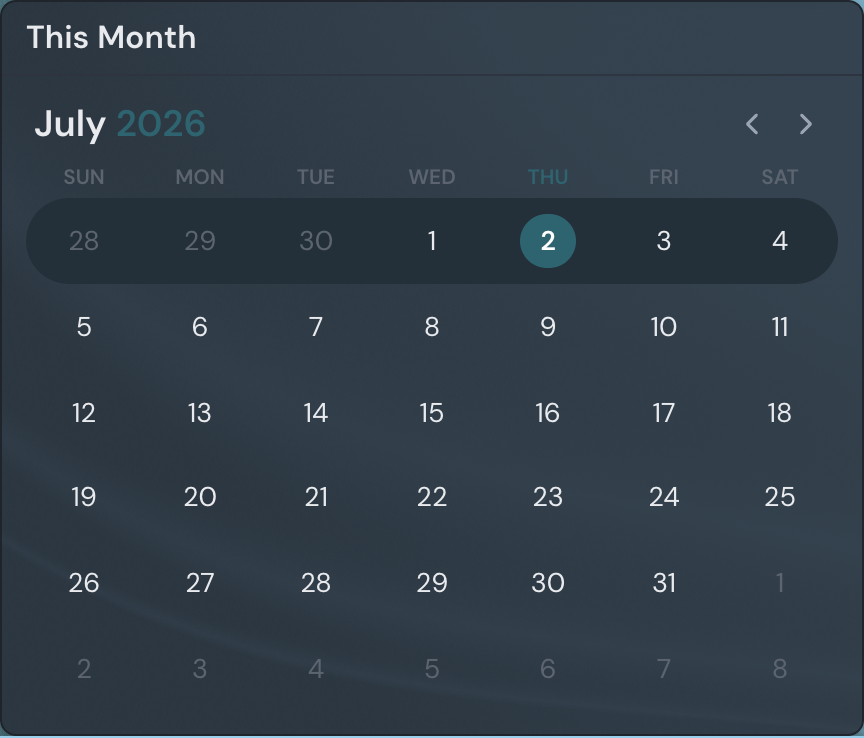
The widget always shows six week rows, so its height stays the same from one month to the next. The header holds the month name with the year beside it in your theme accent color, followed by a row of weekday labels and then the grid of days.
Today's date is marked with a filled circle in the accent color, and the whole week around it gets a full-width band across all seven days. The weekday label above today's column turns the accent color too, while the others stay muted — so today, the current week, and today's weekday all stand out in a single look.
Days before the 1st or after the last of the month are filled in with the neighboring months' dates, shown dimmed so they do not compete with the month you are looking at.
Moving between months
Use the two chevron buttons in the top-right corner to page one month back or forward. There is no limit — you can keep going in either direction, and the calendar crosses year boundaries, rolling December into the following January.
To get back to the current month, click the month and year in the header; it returns to today in one step. The month you are viewing is not saved, so if you page ahead and then reload, the widget opens on the current month again every time.
While the page is in edit mode, the chevrons and the return-to-today action are inactive, so you will not page around while arranging widgets. They work normally once you are back in view mode.
A calendar for dates, not appointments
The Calendar is a viewing calendar: it shows you dates, not appointments. There are no events, reminders, or day-detail views, and the days themselves are not clickable. It is meant as an always-visible month reference rather than a scheduler.
Month and weekday names follow your browser's language, so the calendar reads naturally in whatever locale you use.
A Calendar pairs well with a Clock widget for a start-page corner that shows the time and date together. For the basics of adding, moving, and resizing any widget, see Widgets basics.