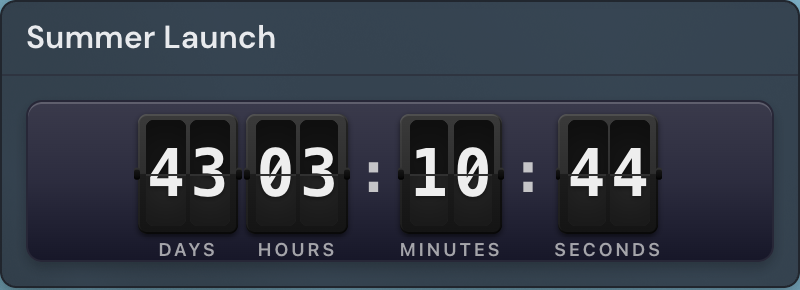
The Countdown widget counts down to a specific calendar date and time, showing the days, hours, and minutes — and seconds, if you want them — still to go. Point it at a moment that matters, such as a product launch, an exam, a trip, or a birthday, and it ticks down in real time on your page. When the target arrives, the counter switches to a message you choose.
Adding the Countdown widget
- Open the page you want to add it to and click Edit in the page header.
- Click Add Widget.
- Choose Countdown from the picker.
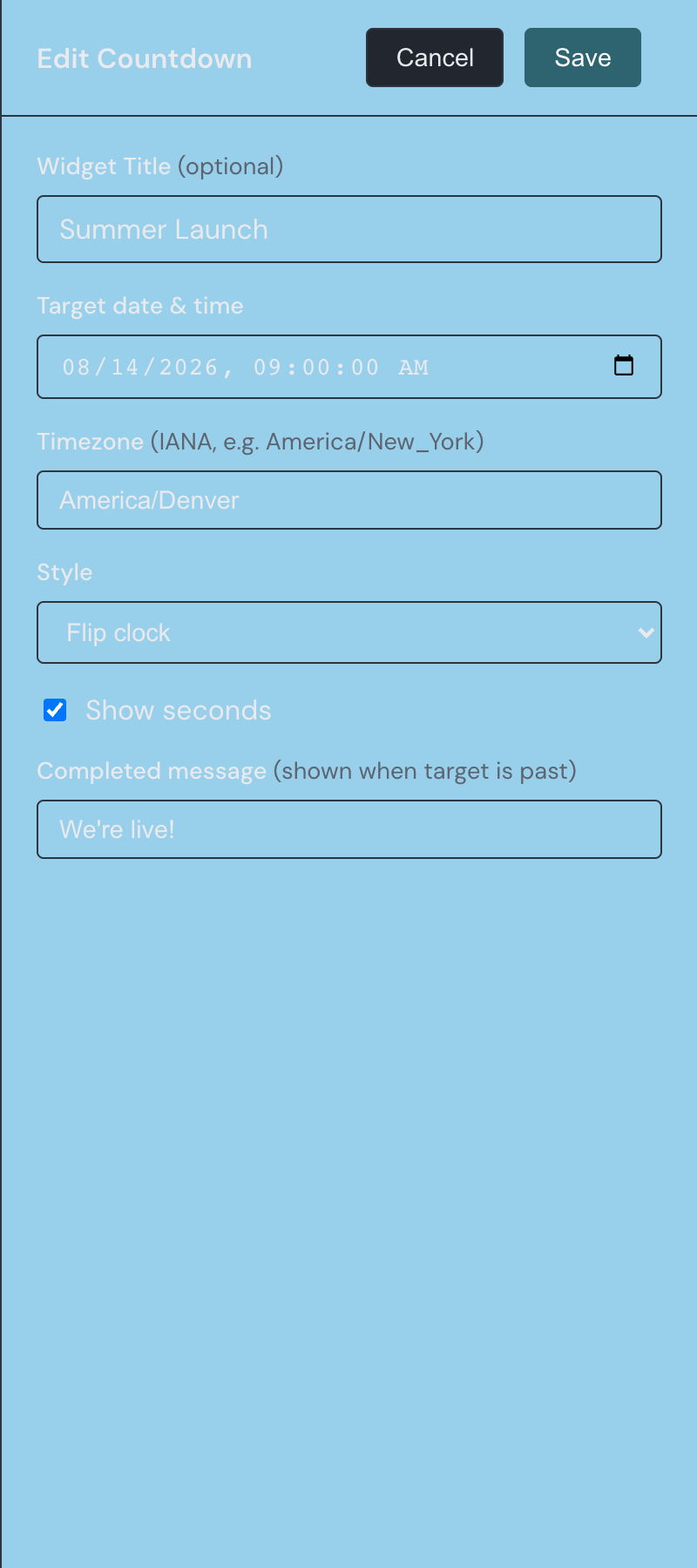
- Set the target date and time, pick its timezone, adjust any other options you want (you can change them anytime), and save.
Settings
Open the widget settings from the gear on its edit-mode toolbar. The Countdown offers these options:
| Setting | What it does |
|---|---|
| Widget Title | Optional text shown in a small header above the counter. Clear it to hide the header. |
| Target date & time | The date and time you are counting down to, down to the second. Required. |
| Timezone | The IANA timezone the target time is read in, such as America/New_York. Defaults to UTC. |
| Style | Choose Digital for plain numerals or Flip clock for animated flip cards. |
| Show seconds | When on, the counter includes seconds and updates every second; when off, it stops at minutes and updates once a minute. |
| Completed message | The text that appears once the target date is reached or has passed. |
What the countdown shows
While the target is in the future, the widget shows the time remaining broken into days, hours, minutes, and seconds. The days figure only appears once there is a full day or more left; inside the final day it counts down hours, minutes, and seconds. Turn off Show seconds for a calmer display that stops at minutes and refreshes once a minute instead of every second.
Two styles are available. Digital shows plain numerals, while Flip clock renders the same values as animated flip cards — the same flip look used by the Clock widget.
When the target date arrives
The moment the countdown reaches zero, the widget replaces the counter with your Completed message. If you left that field empty, it shows a default "Completed!" message instead. Past dates are accepted, so you can set one that has already gone by and the widget shows the finished message right away.
Good uses
A countdown works best for fixed, real-world dates: a launch day, an exam, a wedding, a conference, or the start of a trip. Put one near the top of a shared page so everyone who opens the page sees the same deadline in their own place, wherever they are.
If you want to count down a length of time rather than to a date — a focus session, a workout, or a short break — use the Timer widget instead. The Countdown is for a fixed point on the calendar; the Timer is for a duration you start, pause, and reset.