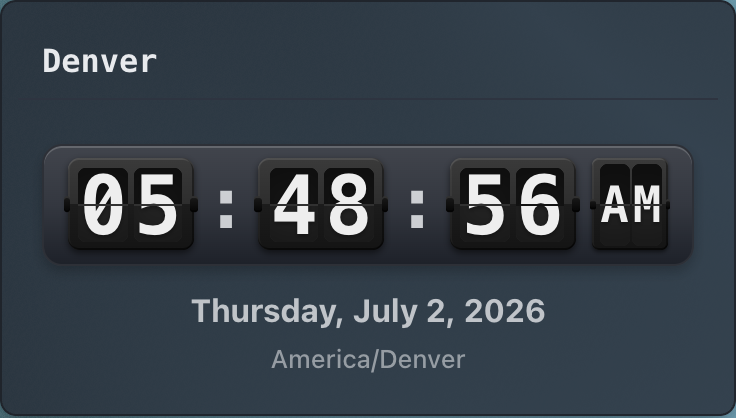
The Clock widget shows the current time for any time zone, as an analog face or a digital readout. Drop one at the top of a page for a quick glance at your own time, or line up several clocks — each named for a different city — to build a world-clock wall that tracks New York, London, and Tokyo side by side. Every clock updates on its own once a second, so it always shows the live time.
Adding the Clock widget
- Open the page you want to add it to and click Edit in the page header.
- Click Add Widget.
- Choose Clock from the picker.
- Pick a time zone and a clock face, set any other options you want, and save (you can change them anytime).
Because a new clock defaults to your current time zone, the face and the title are often the only things you will change.
Settings
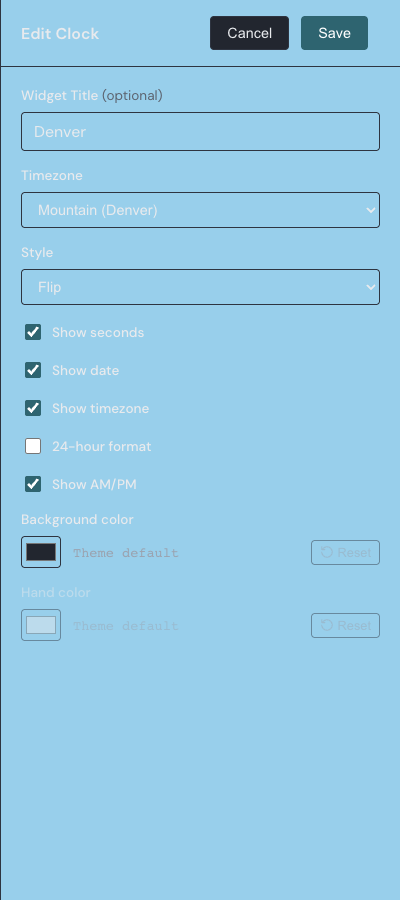
In edit mode, open the widget settings drawer with the gear on the widget toolbar to reach these options.
| Setting | What it does |
|---|---|
| Title | Adds a small header above the clock naming it. Leave it blank for a plain clock, or set it to a city name when you build a world-clock wall. |
| Timezone | The zone the clock shows. Common United States zones are grouped first; the full world list follows below. A new clock defaults to your current zone. |
| Style | The clock face: Digital, Modern Analog, Traditional, or Flip. |
| Show seconds | Shows or hides the seconds digit or hand. |
| Show date | Shows or hides the full date below the time. |
| Show timezone | Shows or hides the time zone under the clock. |
| 24-hour format | Switches the digital and flip faces between 12-hour and 24-hour time. It has no effect on the analog faces. |
| Show AM/PM | Shows or hides the AM/PM indicator when the clock is in 12-hour time. |
| Background color | The color behind the clock. The Traditional face uses its own surface and ignores this. Reset it to fall back to the theme default. |
| Hand color | The color of the hands and hour marks on the Modern Analog face. |
Choosing a clock face
The Style setting offers four faces, so you can match a clock to the look of the page.
- Digital — a large time readout with the date and time zone shown beneath it. This is the default for a new clock.
- Modern Analog — a clean round face with hour marks and moving hands. Use the Hand color option to tint the hands.
- Traditional — an ornate face with Roman numerals and a brass-style bezel. It paints its own surface, so the background and hand colors do not apply.
- Flip — retro split-flap cards that turn over as each digit changes.
The 24-hour format and AM/PM options apply only to the digital and flip faces. The analog faces always read like a normal wall clock, so those two controls are dimmed whenever Modern Analog or Traditional is selected.
Setting the time zone
Open the Timezone list and choose a zone. Common United States zones are grouped at the top — Eastern, Central, Mountain, Pacific, Alaska, and Hawaii, along with Phoenix for Arizona, which does not shift for daylight saving — and the complete world list follows below.
The zone you pick controls which moment the clock displays; the date and time themselves are written in the language your browser uses.
Building a world-clock wall
A row of clocks set to different cities makes a handy world-clock wall for travel planning or a team spread across time zones.
- Add one Clock widget for each city you want to track.
- Give each clock a Title with the city name and set its Timezone to match.
- Line them up in a row, and keep the faces and sizes consistent for a tidy look.
Turn on Show timezone if you also want the zone printed under each clock.
Clocks tick on their own and need no upkeep. For how to add, move, and resize any widget, see the widget basics guide.