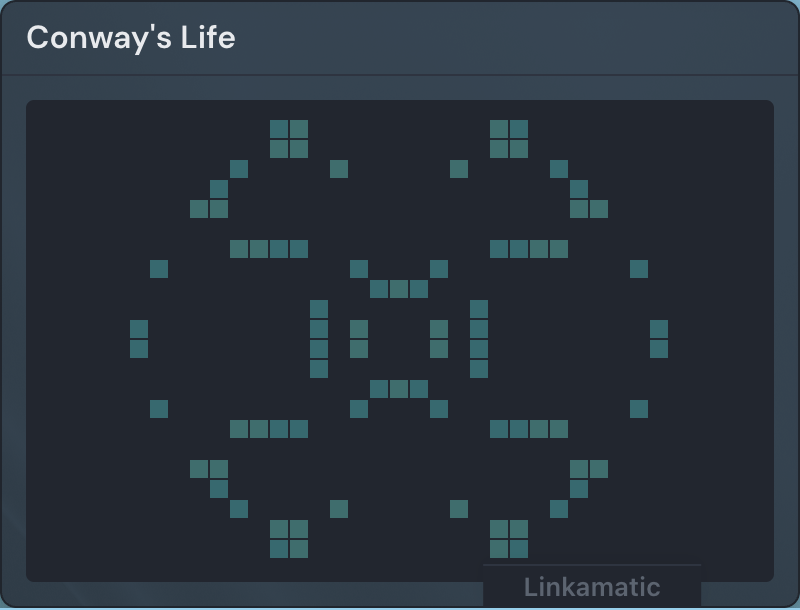
The Conway's Life widget runs Conway's Game of Life right on your page — a living grid of cells that are born, survive, and die generation after generation, animating on its own. It makes a bit of mesmerizing ambient motion for a start page, and you can paint your own shapes into it and watch them play out.
Conway's Game of Life is a cellular automaton: a grid of square cells that are each either alive or dead. Every generation the whole grid updates by a few simple rules — a live cell with two or three live neighbors survives, one with fewer or more dies, and an empty cell with exactly three live neighbors comes to life. From those rules alone, patterns crawl across the board, pulse in place, or settle into still shapes.
Adding the Conway's Life widget
Adding it follows the same steps as any widget — see Widget basics for the full flow:
- Open the page you want to add it to and click Edit in the page header.
- Click Add Widget.
- Choose Conway's Life from the picker — it's in the Fun category.
- Fill in the options you want (you can change them anytime) and save.
Settings
| Setting | What it does |
|---|---|
| Title | An optional heading shown above the board. Leave it blank and no header appears. |
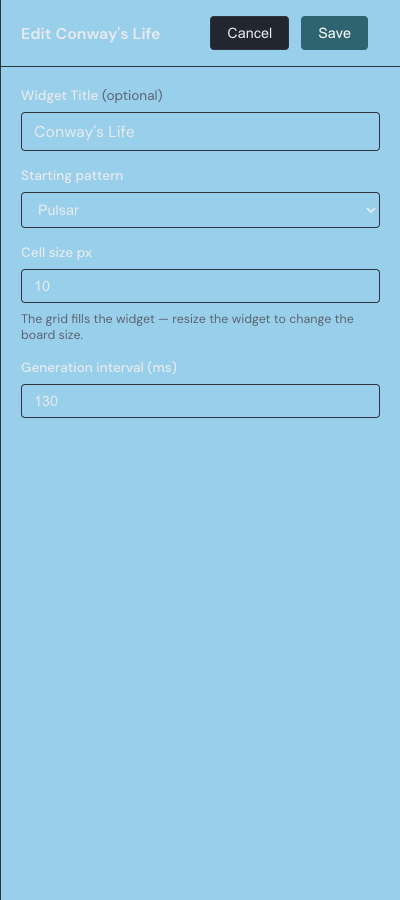
| Starting pattern | The layout the board begins with: Random, Concentric circles, Concentric rectangles, Random lines, Glider, Blinker, Pulsar, or Gosper Glider Gun. Defaults to Random. |
| Cell size px | How big each cell is drawn, from 2 to 20 pixels (default 10). Smaller cells fit more of them into the same space. |
| Generation interval (ms) | How long the board waits between generations, from 50 to 2000 ms (default 150). Lower values run the simulation faster. |
Painting cells
Click any cell to toggle it between alive and dead, and click and drag to paint a stroke of cells. You can do this while the simulation runs to nudge it along, or pause first and draw a starting shape onto a blank board. While the widget is paused the cursor becomes a crosshair, a cue that the board is ready to draw on.
Controls
Hover over the widget and a small row of buttons fades in along the bottom:
- Pause / Resume — stops the board so it holds still, then starts it running again. Pausing is also how you get the crosshair for drawing.
- New random board — fades the current board out and starts over with a fresh random layout.
- Clear grid — appears while paused; empties the board so you can draw your own starting pattern from scratch.
Good to know
It never sits empty
If the board dies out or falls into a short repeating loop, the widget notices, fades everything out, and reseeds itself with a new random layout — so it keeps moving instead of freezing on a dead or static board.
It pauses off-screen
When the widget scrolls out of view the simulation pauses to save resources, then picks back up where it left off once it returns to the screen.
Play isn't saved
Whatever you paint, and however the board evolves, lives only in your browser. Reloading the page starts the widget fresh from its configured starting pattern, and anyone viewing a shared page runs their own copy without changing your setup.
For another widget that animates on its own, try the Flock of Boids widget.