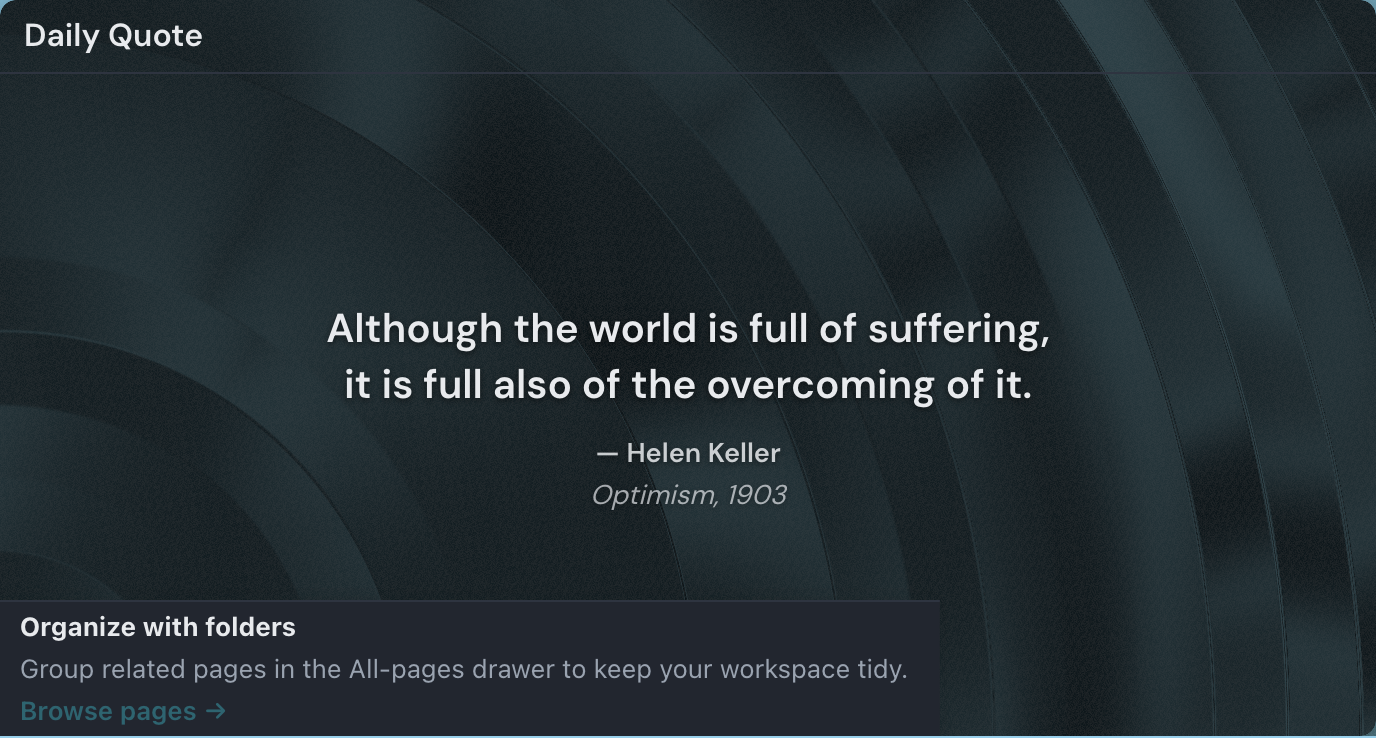
The Quote widget shows a single random quote from a topic you pick — daily motivation, a line of Stoic wisdom, a dad joke, or something from science fiction and beyond. It works well on a start page or a shared page as a small source of inspiration that changes every time the page loads.
Adding the Quote widget
- Open the page you want to add it to and click Edit in the page header.
- Click Add Widget.
- Choose Quote from the picker.
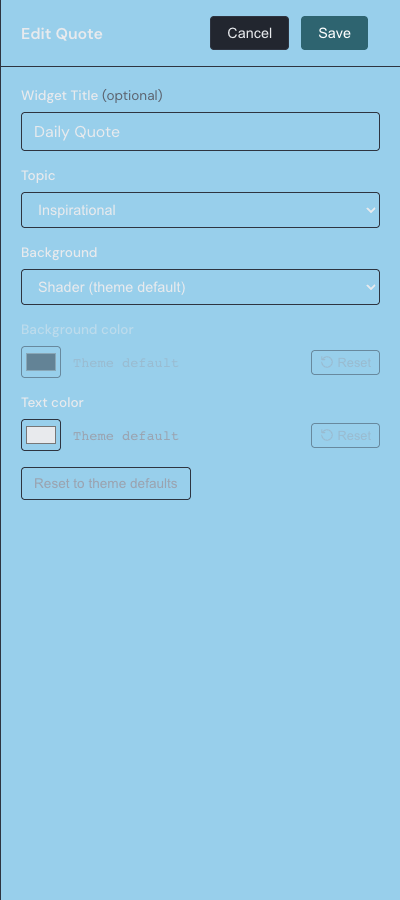
- Pick a topic, adjust the background and text colors if you want (you can change them anytime), and save.
Settings
| Setting | What it does |
|---|---|
| Title | An optional heading shown above the quote. Leave it blank for no header. |
| Topic | The subject the quote is drawn from. New widgets start on Inspirational. |
| Background | Choose Shader (theme default) for an animated background tuned to your theme, or Solid color to set your own. |
| Background color | The color used behind the quote when Background is set to Solid color. |
| Text color | The color of the quote and attribution text. Leave it unset to use the theme default. |
By default the background is an animated Shader tuned to your current theme, and the text color is picked automatically to stay legible against it. If you have customized the colors and want to start over, the Reset to theme defaults button restores the Shader background and the automatic text color.
Choosing a topic
The Topic setting is the choice that matters most. It lists all 17 subjects a quote can be drawn from; each holds 100 curated quotes, and the widget shows one at random. New widgets start on Inspirational.
- Art & Design
- Computer Science & STEM
- Dad Jokes
- English & Writing
- Fitness
- History & Social Studies
- Inspirational
- Investing & Finance
- Math
- Music
- Productivity
- Reading & Books
- Science
- Science Fiction & Fantasy
- Stoicism
- Teaching Tools
- Travel
Change the topic anytime in the settings drawer; the widget immediately pulls a fresh quote from the new topic.
When the quote changes
A new random quote appears every time the page loads, so the widget stays fresh on its own. The quote you see is not saved — it is chosen anew on each visit, and on a shared or public page it loads for visitors too, even when they are not signed in.
To swap in a different quote right away, hover over the widget in view mode and click the shuffle button in the lower-right corner. It pulls another random quote from the same topic without reloading the page. The shuffle button is hidden in edit mode so you do not trigger it by accident.
Attribution
Below the quote, the widget shows the author and — when the quote has them — the source and date. It renders only the fields that exist, so a quote with no source or date (a dad joke, say) appears cleanly on its own, with no empty lines or stray punctuation.
For the basics of adding, moving, and resizing any widget, see Widget basics.