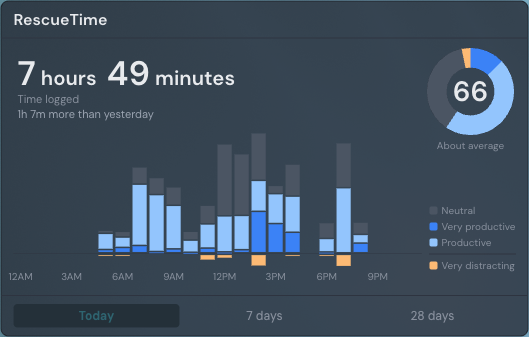
The RescueTime widget puts your own RescueTime statistics on a Linkamatic page: how much time you logged, the productivity pulse RescueTime scores that time with, and a chart showing where the productive and distracting hours fell. It reads from your RescueTime account after you connect it once, and it updates itself while the page is open.
Adding the RescueTime widget
- Open the page you want to add it to and click Edit in the page header.
- Click Add Widget.
- Choose RescueTime from the picker, under the Data category.
- Fill in the options you want (you can change them anytime) and save.
A new widget shows a Connect RescueTime button instead of numbers. Click it and you are sent to rescuetime.com to approve access. Approve, and you land back on the page you started from with your statistics already loaded. Decline, and nothing is stored — the widget keeps showing the connect button.
You need a RescueTime account with its tracking app installed for there to be anything to show. Linkamatic asks RescueTime for two things only: your time data and your productivity levels. It never sees your password, and it cannot change anything in your RescueTime account.
Reading the widget
The headline is the total time RescueTime logged for the period you are viewing, with a line under it comparing that total against the period before — for example, 1h 7m more than yesterday. When there is no comparable earlier period, or the difference is under a minute, the line is left out rather than showing a misleading number.
The dial on the right is your productivity pulse: RescueTime scores the period from 0 to 100 by weighting each of the five productivity levels, so an hour of very productive time counts for more than an hour of neutral time. The number sits inside the ring, the qualitative label RescueTime gives it sits under the ring, and the ring itself is divided by level so you can see what the score is made of. A 66 built mostly from neutral time looks very different from a 66 split between very productive and very distracting work.
The chart below shows the same time broken into buckets — one bar per hour in the Today view, one per day in the others. Productive and neutral time stacks above the line, distracting time hangs below it, which is the same convention the RescueTime dashboard uses. The key on the right names each color and splits at the same line. In the 7- and 28-day views a faint vertical divider marks where the week or the month turned over.
Rest your pointer on any bar for a moment and a panel opens with that bucket named at the top, a row for every productivity level with time logged, and the total underneath.
Switching between Today, 7 days, and 28 days
The three buttons along the bottom switch periods. Today covers the current day hour by hour. The other two are rolling windows ending today — the last 7 days and the last 28 days — each compared against the window of the same length before it. Rolling windows keep the comparison fair: a calendar week that is only two days old would otherwise be measured against seven full days and always look like a collapse.
Twenty-eight days rather than a calendar month is deliberate too. Four whole weeks means both halves of the comparison contain the same number of weekdays and weekends, so the difference reflects your time and not the calendar.
Whichever period you pick is remembered in your browser for that widget, so a reload brings you back to it. It is remembered per person and per device: your choice does not change what anyone else sees, and the widget still opens on the default period the first time someone views it on a new device.
Opening your RescueTime dashboard
Click anywhere on the totals and the dial and your RescueTime dashboard opens in a new tab. From the Today view it opens on that day. The rolling windows open the dashboard itself, because rescuetime.com has no matching rolling view — a less specific destination is better than one that disagrees with the figures on your page.
Who can see your statistics
Only you. The widget always shows the statistics of the person looking at the page, never the statistics of whoever placed it. Someone else viewing your page — a collaborator, a visitor to a public page, or anyone not signed in — sees the connect prompt in that spot, and sees their own numbers if they connect their own RescueTime account. Your totals are never shown to another viewer.
How often the numbers update
While the page is open and in front of you, the widget refreshes on its own — about every 15 minutes, or about every 5 minutes if your RescueTime plan syncs at the faster rate. It stops refreshing when you switch to another tab and catches up as soon as you come back, so a page left open overnight is current when you return to it rather than hours stale.
Figures can still trail rescuetime.com slightly, because RescueTime uploads from your devices on its own schedule. If RescueTime cannot be reached, the widget keeps the last numbers it had and says so under the total instead of going blank. Before anything is logged, it says there is no time logged yet for that period, which is a normal state early in the morning and not an error.
Settings
| Setting | What it does |
|---|---|
| Widget title | An optional heading shown at the top of the widget, up to 80 characters. Leave it blank for no header. |
| Default period | Which period a viewer sees first: Today, Last 7 days, or Last 28 days. After that, each viewer’s own choice is remembered in their browser. |
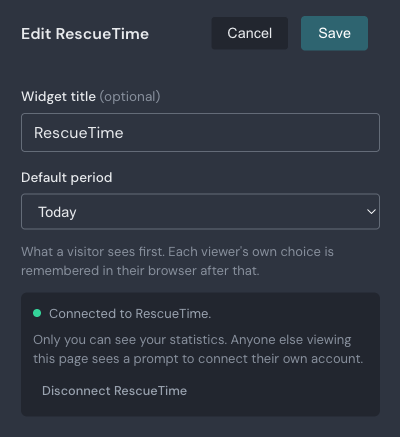
| Disconnect RescueTime | Removes the stored connection between Linkamatic and your RescueTime account. Shown once you are connected. |
Disconnecting
Open the widget settings and click Disconnect RescueTime, then confirm. Linkamatic discards the stored access to your account and every RescueTime widget on your pages goes back to the connect prompt. Nothing is deleted in RescueTime itself.
Deleting your last RescueTime widget does the same thing on its own: with nowhere left to show the statistics, the stored access is discarded rather than kept indefinitely. Adding a widget again later means approving access again, which takes a few seconds.
For the basics of adding, moving, resizing, and retitling any widget, see Working with widgets. For other ways to keep an eye on the day, see the Habits widget and the Timer widget.