The RSS Feed widget turns any site's RSS or Atom feed into a live list of headlines on your page. Point it at a news site, a blog, or a podcast, and it pulls in the latest posts and keeps them current on its own. It works well as a morning news panel or as a way to follow a handful of favorite sites in one place.

Adding the RSS Feed widget
- Open the page you want to add it to and click Edit in the page header.
- Click Add Widget.
- Choose RSS Feed from the picker, under the Data category.
- Fill in the options you want (you can change them anytime) and save.
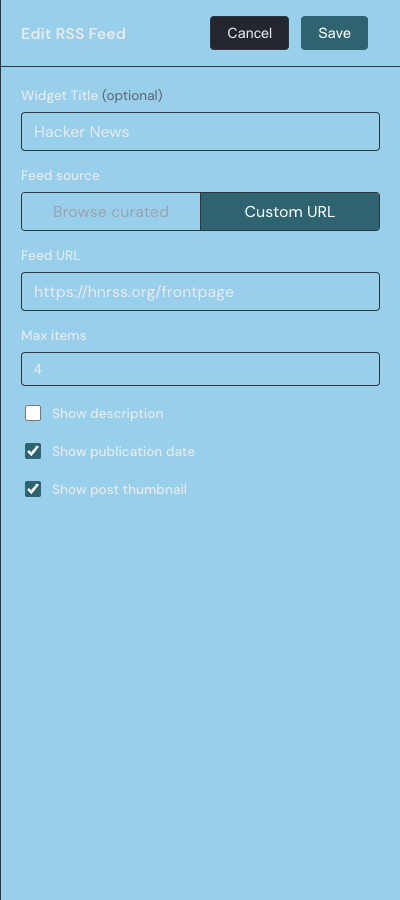
When you pick a feed you have two choices. Browse curated lets you pick from Linkamatic's suggested feeds, grouped by category, so you can add one without hunting for a URL. Custom URL lets you paste the address of any RSS or Atom feed yourself.
Settings
Open a widget's settings from the gear on its toolbar in edit mode. Some options only appear for the feed source you chose.
| Setting | What it does |
|---|---|
| Widget Title | An optional title shown in a small header above the feed, up to 80 characters. Leave it blank and the widget uses the feed's own name instead. |
| Feed source | Choose Browse curated to pick from Linkamatic's suggested feeds, or Custom URL to enter your own feed address. |
| Category | In Browse curated mode, the topic group whose feeds you want to browse. |
| Feed | In Browse curated mode, the specific feed to show from the chosen category. |
| Feed URL | In Custom URL mode, the web address of the RSS or Atom feed. It must start with http:// or https://. |
| Max items | How many headlines to show, from 1 to 20. Defaults to 5. |
| Show excerpt | When on, a short summary appears under each headline. Off by default. |
| Show post thumbnail | When on, shows a small image beside a headline whenever the feed provides one. On by default. |
What each headline shows
Every entry in the list is a headline that links to the full article. Headlines open in a new browser tab, so your page stays put. The feed's name and site icon sit in the header at the top of the widget, and clicking the name opens the source site in a new tab.
Two optional details ride along with each headline. When Show excerpt is on, a short plain-text summary sits under the headline, trimmed if it runs long. When Show post thumbnail is on and the feed includes an image, a small square thumbnail sits to the left. The publication date appears in the top-right of the header for the newest item only: recent posts read as relative time like '2 hours ago', while anything older than a week shows as an exact date.
How the feed refreshes
The widget loads the latest headlines when the page opens and then refreshes on its own about every 15 minutes, so new posts show up without reloading the page. To avoid needless work, it pauses refreshing while it is scrolled out of view and picks back up when it returns to the screen, fetching right away if it has been more than 15 minutes since the last update.
Marking headlines as read
When you click a headline to open it, the widget marks it as read: the headline dims, and if it has a thumbnail a check mark appears over the image. Read state is remembered in your browser and shared across every RSS Feed widget you have. Because it lives in your browser, it is specific to the device you are on.
Troubleshooting
The feed will not load
If the widget shows 'Could not load feed' with a Retry button, the address is usually the cause. Check the URL for typos, make sure it starts with http:// or https://, and confirm the site actually publishes a feed at that address. The site may also be down briefly, so Retry is worth a try.
Finding a site's feed URL
The page you read in a browser is usually not the feed itself. Look for an RSS icon or a link labeled RSS or Subscribe, often in the footer or sidebar, and copy that address. Many sites also keep their feed at a predictable path, so adding /feed, /rss, or /feed.xml to the end of the site address is worth trying. News sites, blogs, and podcasts almost always offer a feed.
It says 'No items in this feed'
This means the feed loaded correctly but has no posts right now. The widget keeps checking on its refresh schedule and fills in headlines as soon as the site publishes something.
An RSS Feed widget shares the grid with your other tiles, so you can move and resize it like anything else. See widget basics for how widgets fit together on a page.