The Trending Picks widget fills a spot on your page with currently popular Amazon products for a topic you choose — bestselling cookbooks, popular camera gear, the latest board games, or anything you can describe in a few keywords. Pick an interest from a ready-made list or type your own search, and the widget keeps a fresh set of products in front of you and anyone you share the page with.
Adding the Trending Picks widget
- Open the page you want to add it to and click Edit in the page header.
- Click Add Widget.
- Choose Trending Picks from the picker.
- Choose a topic — pick an interest or set up a custom search — set how many products to show, and save (you can change everything later).
Choosing what to show
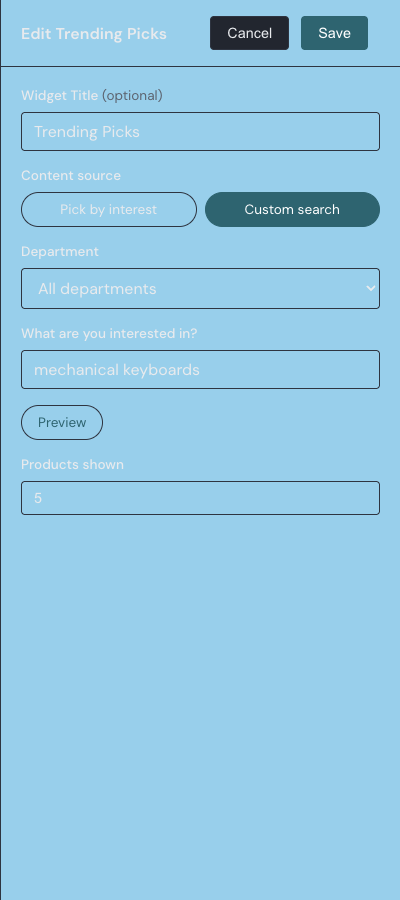
A Trending Picks widget draws from Amazon in one of two ways, chosen with the Content source control in its settings: Pick by interest or Custom search.
Pick by interest
Pick by interest opens a pop-up listing the same interests offered when you first set up Linkamatic, each with its icon. Choose one interest, then choose Bestselling books or Popular merchandise. That is the whole setup — you never see or type any search terms. If an interest has no products of one type, that option is dimmed. Your choice is summarized in plain language, such as "Cooking & Recipes — Popular merchandise".
Custom search
Custom search goes beyond the ready-made interests. Pick a Department — a plain-English list such as Books, Electronics, Toys & Games, and Home & Kitchen — and type what you are after in the "What are you interested in?" field, such as mechanical keyboards. Click Preview to see the actual products your keywords return before you commit, and adjust the keywords until the list looks right.
Settings
In edit mode, open the widget settings drawer with the gear on the widget toolbar to reach these options.
| Setting | What it does |
|---|---|
| Widget Title | An optional heading shown in a small header above the product list, up to 80 characters. Leave it blank for no header. |
| Content source | Switches the widget between Pick by interest and Custom search. |
| Pick by interest | Opens the "Pick by interest" pop-up, where you choose one interest and either Bestselling books or Popular merchandise. |
| Department | For a custom search, the product department to look within — a plain-English list such as Books, Electronics, Toys & Games, and Home & Kitchen. |
| What are you interested in? | For a custom search, the keywords to search for (such as mechanical keyboards), up to 150 characters. |
| Preview | For a custom search, fetches and shows the products your keywords return so you can adjust them before saving. |
| Products shown | How many products the widget lists, from 1 to 10. New widgets show 5. |
What each product shows
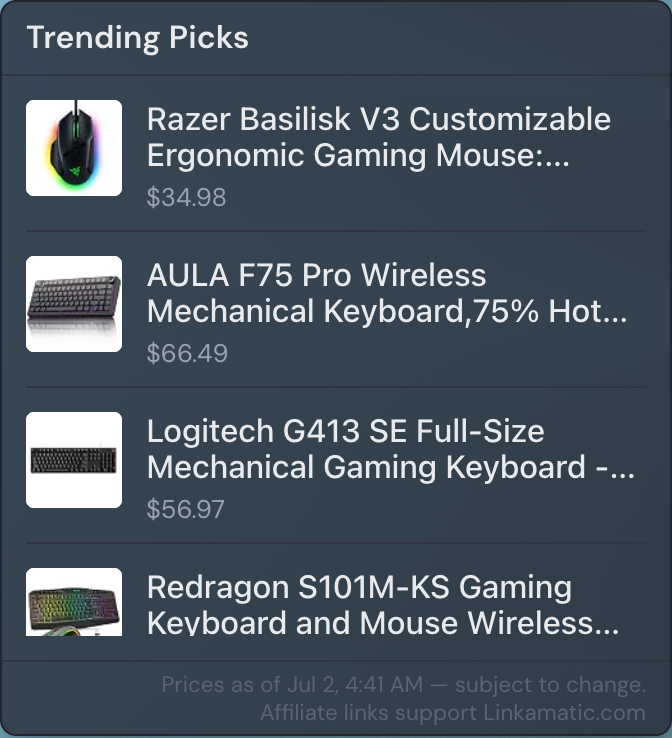
Each item in the list shows a small product image, the product title as a link, and its price when Amazon provides one. Long titles are trimmed to keep the rows tidy, and the full title appears when you hover over one. Clicking any product opens its Amazon page in a new browser tab.
The product links are Amazon affiliate links, which means Linkamatic may earn a commission when you buy something through them. A line of fine print at the bottom of the widget — "Affiliate links support Linkamatic.com" — notes this on every list that shows products. When prices appear, the footer also stamps the time they were last checked, since Amazon prices change.
How often the list refreshes
Trending Picks refreshes at most once a day. The list is shared behind the scenes by every widget set to the same topic, so opening the page during the day shows the products already on hand rather than fetching new ones. The first view after a day has passed quietly pulls a fresh set; until that finishes, the previous list stays on screen, so the widget never goes blank.
The list loads for anyone who can see the page, including visitors who are not signed in, and they see the same products you do. If a topic has no products yet, the widget shows a short "Nothing trending right now" message; if Amazon cannot be reached the very first time, it shows a "Trending picks are warming up — check back soon" note with a Retry button.
Trending Picks uses the same compact list style as the RSS Feed widget, so the two sit well side by side. For the basics of adding, moving, and resizing any widget, see Widgets basics.