The Weather widget shows current conditions and a multi-day forecast for any city you choose. Use it to keep an eye on your home town, follow the weather where family or teammates live, or check a place you are about to visit — all in one widget. Weather readings come from Open-Meteo, so there is nothing to connect and no account to set up.
Adding the Weather widget
- Open the page you want to add it to and click Edit in the page header.
- Click Add Widget.
- Choose Weather from the picker, in the Data category.
- Type a city name and pick it from the results, choose your units, and save (you can change everything later).
A new Weather widget tries to start with your current location, so it can show local conditions the moment you place it. You can swap that city for another or add more.
Settings
In edit mode, open the widget settings drawer with the gear on the widget toolbar to reach these options.
| Setting | What it does |
|---|---|
| Widget Title | An optional header shown above the widget. Leave it blank for no header. Up to 80 characters. |
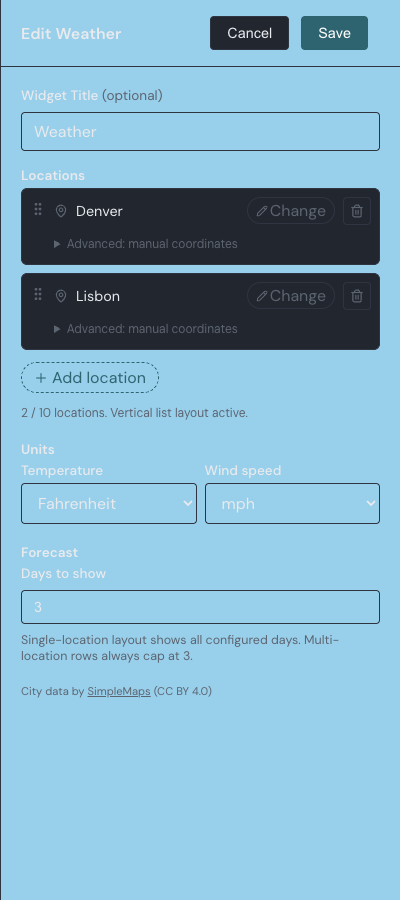
| Locations | The cities the widget shows. Add up to 10, and drag a row or use the arrow keys to reorder them. One city uses the full layout; two or more switch to a list. |
| Temperature | The temperature unit for every city: Celsius or Fahrenheit. |
| Wind speed | The wind speed unit for every city: km/h, mph, or m/s. |
| Days to show | How many days of forecast appear, from 0 to 7. Fewer days show when the widget is too narrow to fit them all. |
Choosing a location
You add a city by typing its name. After you pause typing for a moment, the widget searches a worldwide city database and lists the matches, with larger cities first; pick one and it fills in that location. Type at least two letters to get results.
If a place is not in the database, open Advanced: manual coordinates under a location to enter its latitude and longitude by hand and give it a label. To swap a city later, use the Change button on its row; to drop one, use the trash button. A widget always keeps at least one city.
Tracking more than one city
A single city gets the full display — a large current-conditions panel with a forecast below. Add a second city and the widget switches to a vertical list, one row per city. You can track up to 10 cities this way and reorder them so your most important one sits at the top: drag a row, or focus it and press the up and down arrow keys.
Every city loads on its own. If one cannot load — say its data is briefly unavailable — that row shows a Retry button while the rest keep working normally.
What the widget shows
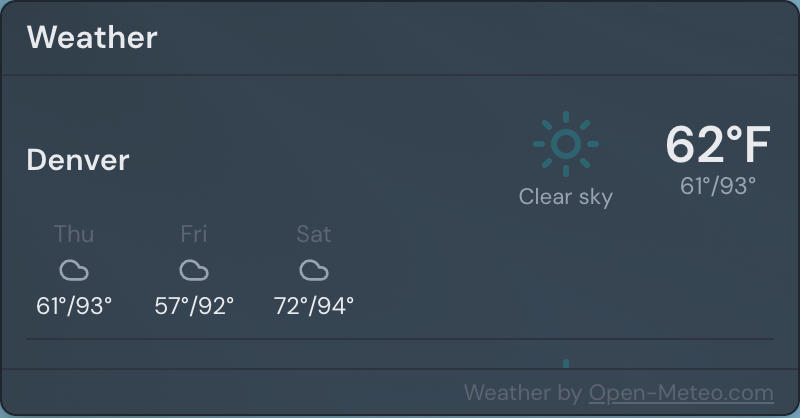
For a single city, the widget shows the place name, a weather icon, the current temperature, a short description of the conditions, and the current wind speed and humidity. Below that sits the daily forecast, with each day's icon and its high and low temperature.
The layout adjusts to the widget's size on its own. A wide widget spreads the forecast out beside the current conditions; a tall, narrow one stacks the days into a column; and the smallest sizes drop the forecast to keep the current reading readable. Widgets never scroll, so resizing is how you reveal more.
How often it updates
Each city's reading is cached for about half an hour rather than fetched on every page load. When you switch back to the browser tab after a while, the widget refreshes any reading that is more than a few minutes old, so the numbers stay current without constant network traffic.
The multi-city list borrows its row layout from the RSS widget. For how to move, resize, and arrange any widget on a page, see widget basics.